Windows 8 Modern (Metro/UWP) 應用程式點擊無反應、瞬間閃退、提示「請使用 Windows Live 帳號登入」是常見問題。本文提供三步驟修復流程:啟用內建管理員帳號測試、系統檔案檢查修復 (SFC)、顯卡驅動更新/應用重新安裝。
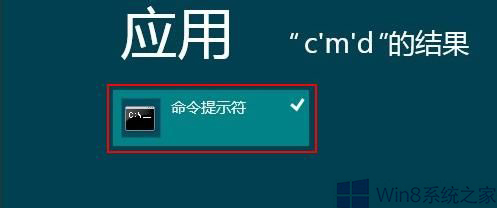
cmd → 右鍵「命令提示字元」 → 「以管理員身分執行」。

原理:啟用內建 Administrator 帳號會導致 Modern 應用無法在標準使用者環境正常執行,停用可恢復正常應用容器環境。
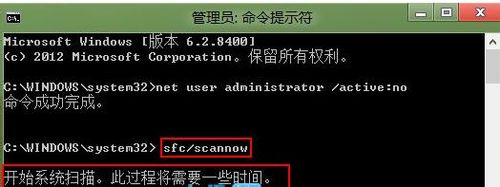
net user administrator /active:no
sfc /scannow等待掃描完成 (約 5-15 分鐘),若顯示「Windows 資源保護找到損毀的檔案並成功修復」,重新開機測試應用。
Get-AppXPackage -AllUsers | Foreach {Add-AppxPackage -DisableDevelopmentMode -Register "$($_.InstallLocation)\AppXManifest.xml"}| 錯誤/現象 | 可能原因 | 對應方案 |
|---|---|---|
| 提示需 Windows Live 帳號 | 內建 Administrator 啟用 / 帳號同步異常 | 停用內建管理員、重新登入 Microsoft 帳號 |
| 0x80073CF9 / 0x80070005 | 應用套件註冊損壞 / 權限問題 | PowerShell 重新註冊、SFC 修復、重設應用 |
| 啟動畫面一閃即關 | 顯卡驅動相容 / DirectX 元件損壞 | 更新顯卡驅動、重裝 DirectX (DXWEBSETUP) |
| 所有 Modern 應用皆閃退 | 應用容器服務 (AppXSvc) 異常 / 使用者設定檔損壞 | 建立新帳號、系統還原、重設電腦 |
依序執行「停用內建管理員 → SFC 修復 → 更新顯卡驅動 → 重新註冊應用」,可解決絕大多數 Modern 應用閃退問題。
Win8 開機預設進入 Metro 開始畫面?任務欄導航設定一鍵改回傳統桌面
Win10 Mobile 10586.122 更新內容完整匯總:穩定性修復與續航提升
Win10 如何管理開機啟動項?任務管理員與安全軟體雙法圖解
Win10 紅石預覽版 10525 升級失敗 0x80072EFD 解決:關閉防火牆或修改 DNS
WinXP FAT32 轉 NTFS 格式圖文教程:格式化法與 convert 指令無損轉換法雙路徑
Win7 找不到 FlashPaper 虛擬印表機?啟用 Print Spooler 服務並手動新增解決