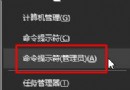
Windows 8 系統功能更為完善,內建防火牆能有效阻擋病毒入侵,保護電腦安全。但在安裝特定軟體時,防火牆常會攔截導致安裝失敗或耗時。此時暫時關閉防火牆是常見做法。本文將詳細說明如何在 Windows 8 中開啟或關閉防火牆。
操作步驟
- 按下 Win + C 開啟 Charms 列,點選「設定」圖示,再選擇「控制台」。
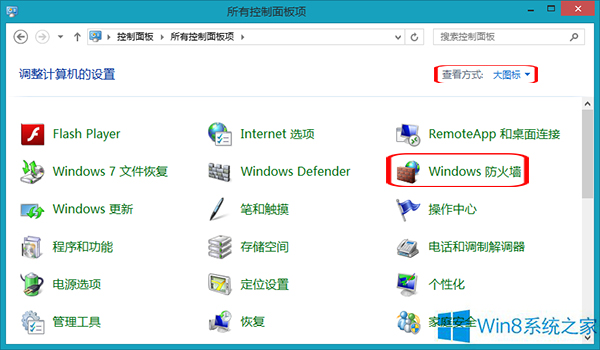
- 在控制台視窗中,將檢視模式切換為「大圖示」或「小圖示」,找到並點擊「Windows 防火牆」。
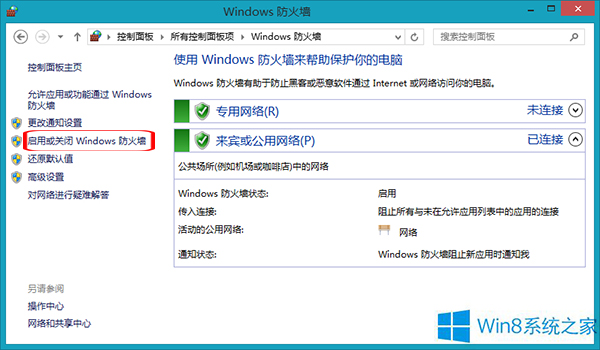
- 左側選單點選「開啟或關閉 Windows 防火牆」,即可分別針對私人網路與公用網路關閉防火牆。建議僅在必要時關閉,完成安裝後務必重新開啟。
- 若需重新啟用,同樣進入此選項勾選「開啟 Windows 防火牆」即可。
提醒:長期關閉防火牆會大幅降低系統安全性,建議改為在防火牆中新增「允許的應用程式」而非完全關閉。