Windows XP Windows 7 Windows 2003 Windows Vista Windows 綜合教學 Linux 系統教學
Windows 10 Windows 8 Windows 2008 Windows NT Windows Server 電腦軟體教學

Win10 應用商店閃退/打不開?PowerShell 重註冊 + wsreset 清除快取雙重修復

編輯:Win8 常見問題解答

Win10 早期版本常出現 Microsoft Store 悶閃退、內建應用 (照片、郵件、計算機等) 點擊無反應。核心原因:AppX 套件註冊資訊損毀或快取異常。提供兩套官方修復指令,成功率極高。

方案一:PowerShell 重註冊所有 AppX 套件(徹底修復)

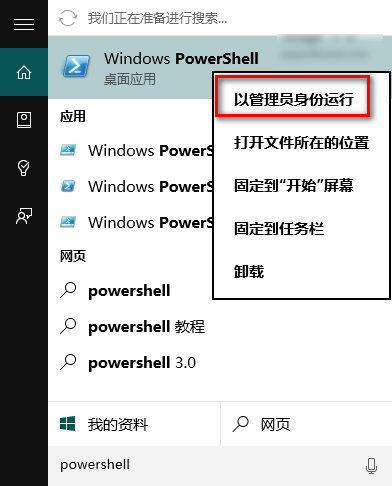
  1. 任務列搜尋框輸入 PowerShell → 右鍵搜尋結果 → 「以系統管理員身分執行」。
  2. 以管理員身分執行 PowerShell
  3. 針對商店閃退,複製貼上以下指令按 Enter:
$manifest = (Get-AppxPackage Microsoft.WindowsStore).InstallLocation + '\AppxManifest.xml' ; Add-AppxPackage -DisableDevelopmentMode -Register $manifest
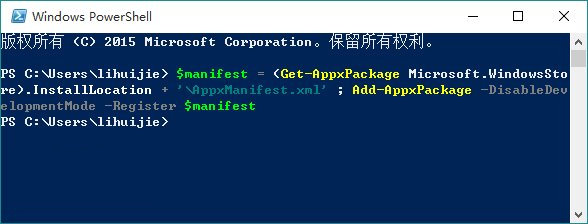
PowerShell 修復商店指令執行
  1. 針對所有內建應用異常,執行通用修復指令:
Get-AppXPackage -AllUsers | Foreach {Add-AppxPackage -DisableDevelopmentMode -Register "$($_.InstallLocation)\AppXManifest.xml"}
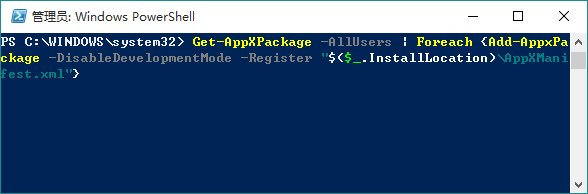
PowerShell 修復所有應用指令
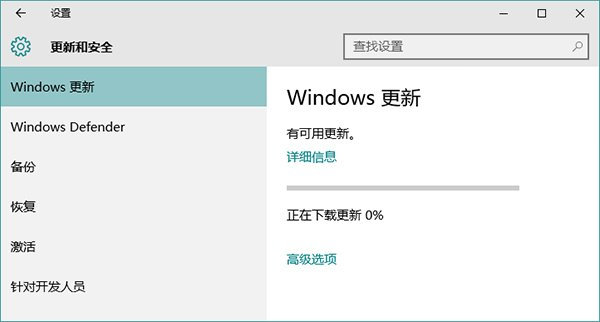
  1. 執行完成後,開啟「設定 → 更新與安全性 → Windows Update」安裝所有待裝更新(含應用更新)。
Windows Update 安裝更新

方案二:wsreset.exe 清除商店快取(輕量級嘗試)

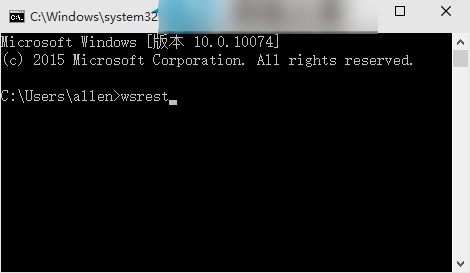
  1. Win + X → 「命令提示字元 (系統管理員)」或「PowerShell (系統管理員)」。
  2. 輸入 wsreset 按 Enter。
  3. 執行 wsreset 指令
  4. 商店自動開啟並提示「已清除應用商店的快取,現在可以瀏覽應用」。

建議執行順序

先試 方案二(秒級完成),無效再執行 方案一(需 1-2 分鐘)。兩者可重複執行無副作用。修復後建議重啟一次電腦。

Copyright © Windows教程網 All Rights Reserved