Windows 8 內建行事曆 App 同步 Google Calendar 完整步驟
Windows 8 內建的現代化「行事曆」應用程式支援直接加入 Google 帳號,即時雙向同步行程。以下是設定流程:
- 開啟開始畫面的「行事曆」磚塊。
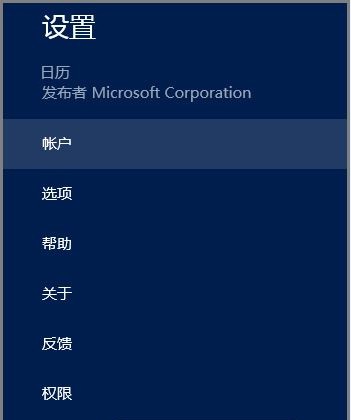
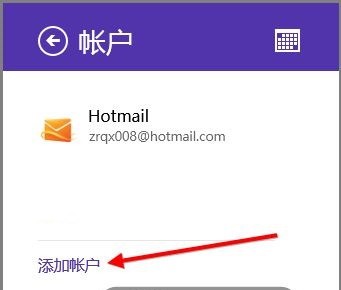
- 呼叫 Charms 列(Win+C 或右邊緣滑入),點擊「設定」→「帳戶」。
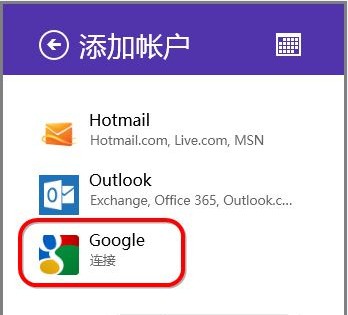
- 點擊「新增帳戶」,選擇「Google」。
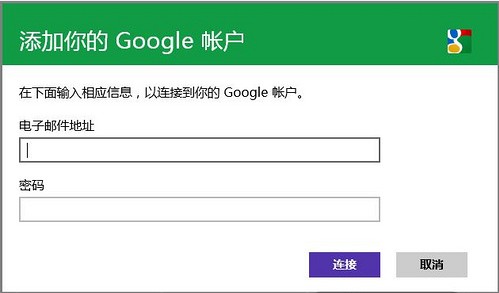
- 輸入 Google 帳號(Gmail)與密碼,點擊「連線」。
- 授權完成後,Google 帳號即出現在帳戶清單中。
電腦常識
使用效果
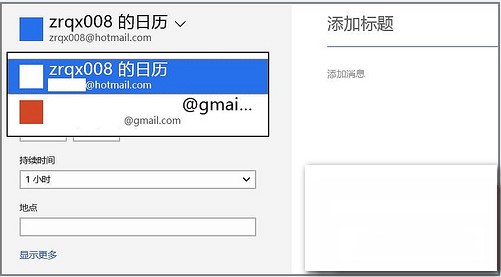
- 新增行程時,下拉選單可選擇儲存至哪個帳號(Google / Outlook / Hotmail 等)。
- 修改、刪除行程會自動同步至 Google 行事曆。
- 在手機、網頁版 Google Calendar 同步即時生效。
透過內建行事曆 App 整合 Google 帳號,無需安裝第三方軟體,即可在 Windows 8 裝置上無縫管理雲端行程。