Windows XP Windows 7 Windows 2003 Windows Vista Windows 綜合教學 Linux 系統教學
Windows 10 Windows 8 Windows 2008 Windows NT Windows Server 電腦軟體教學

解決 IdeaPad Y400/Y500 Win8 無線網路受限/無法上網:關閉省電、啟用 FIPS 相容、回滾驅動、優化 TCP 設定

編輯:Win8 系統應用技巧

聯想 IdeaPad Y400/Y500 預裝 Windows 8,搭載 Broadcom 4313 無線網卡,高機率出現連接家用路由器顯示「受限制存取」(黃色驚嘆號) 無法上網。非硬體故障,屬驅動與路由器相容性問題,可透過以下四步驟解決:
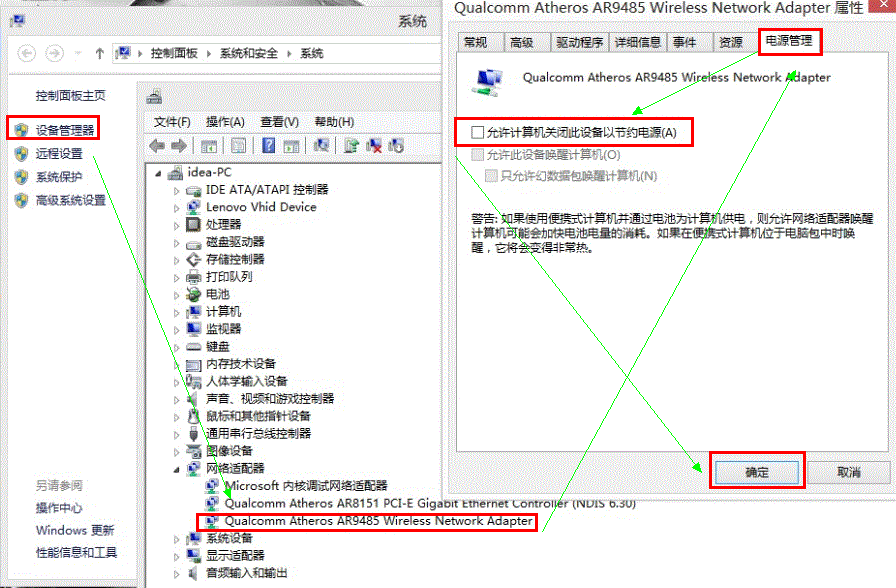
步驟一:關閉無線網卡省電功能

  1. 裝置管理員 → 網路介面卡 → Broadcom 4313 → 右鍵內容 → 電源管理。
  2. 取消勾選「允許電腦關閉此裝置以節省電源」。

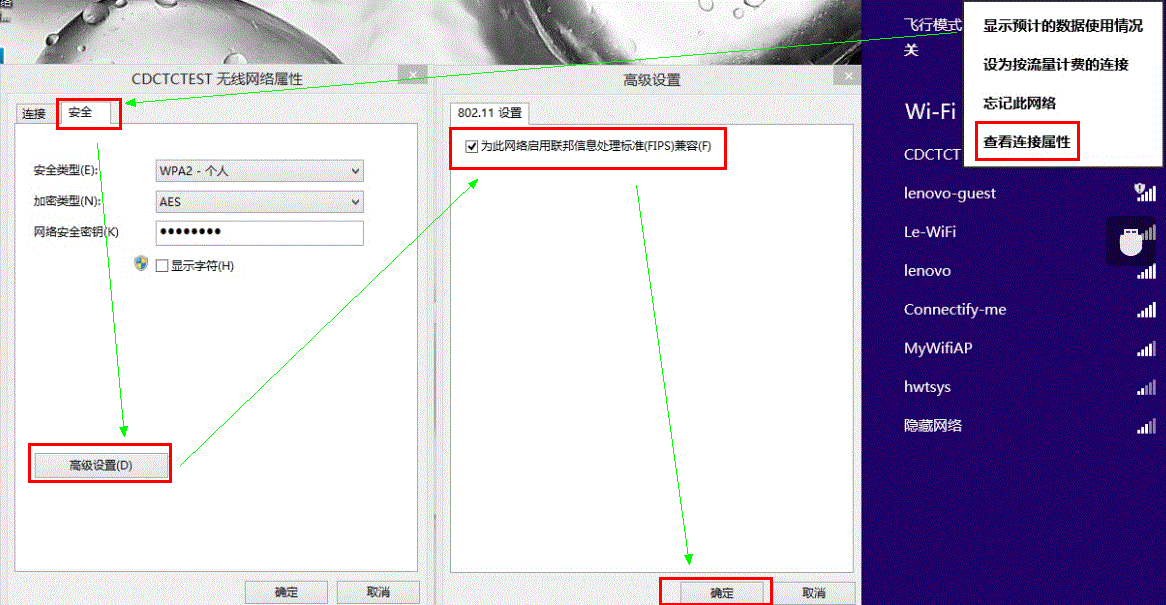
步驟二:啟用 FIPS 相容性增強網路相容

  1. 右鍵已連線的 Wi-Fi → 「檢視連線內容」→「安全性」→「進階設定」。
  2. 勾選「啟用聯邦資訊處理標準 (FIPS) 相容性」。
  3. 若無此選項,嘗試將路由器加密方式改為 AES (非 TKIP)。

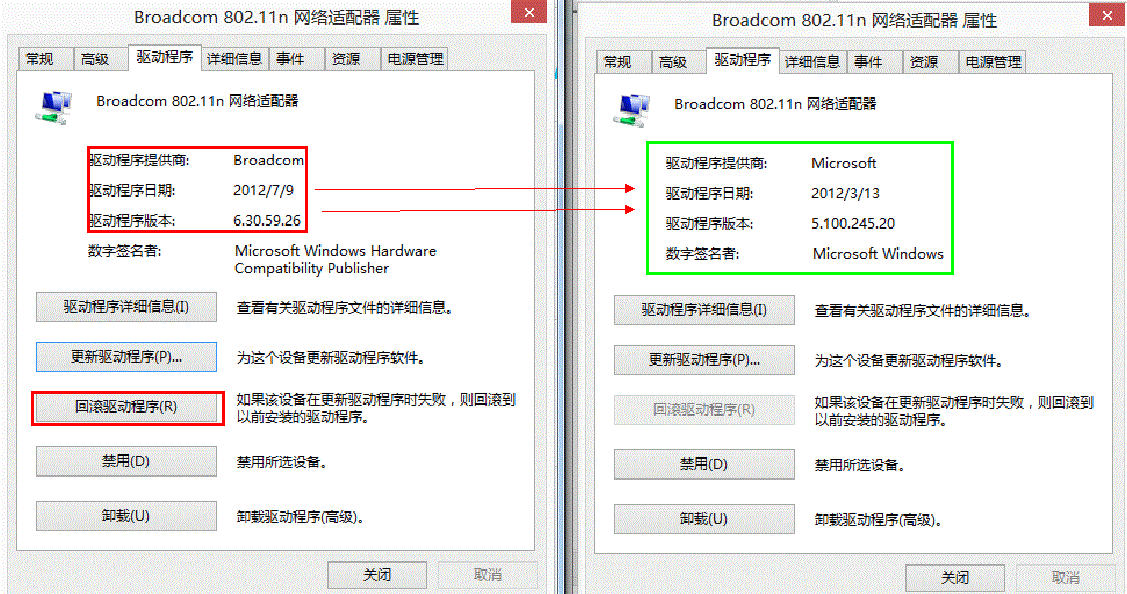
步驟三:回滾無線網卡驅動程式

  1. 裝置管理員 → Broadcom 4313 → 內容 → 驅動程式 → 「回復驅動程式」。

步驟四:優化 Windows 8 TCP 設定

以系統管理員身分執行命令提示字元,依序輸入:

netsh int tcp set global chimney=enabled
netsh int tcp set global rss=enabled
netsh int tcp set global netdma=enabled
netsh int tcp set global autotuninglevel=normal

重開機後測試。此問題為驅動與 Win8 網路堆疊對特定路由器 (如某些 TP-Link、D-Link) 相容性不佳所致,上述步驟多數情況可徹底解決。

Copyright © Windows教程網 All Rights Reserved