Windows XP Windows 7 Windows 2003 Windows Vista Windows 綜合教學 Linux 系統教學
Windows 10 Windows 8 Windows 2008 Windows NT Windows Server 電腦軟體教學

聯想筆電升級 Win8.1 後桌面提示「Secure Boot 未正確配置」解決方案

編輯:Win8 系統應用技巧

現象

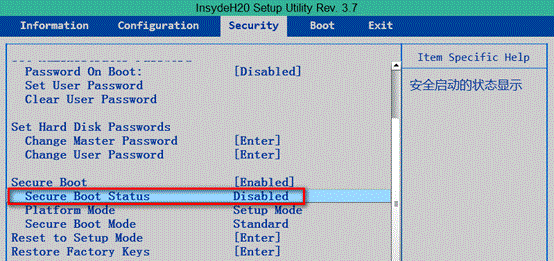
升級至 Windows 8.1 後,桌面右下角水印顯示「Secure Boot 未正確配置」。這是因為 BIOS 中的 Secure Boot 狀態異常(已啟用但 Status 顯示關閉)。

Secure Boot 未正確配置水印

兩類 BIOS 的修正步驟

第一類:Security 選單可見 Secure Boot 選項

  1. 重開機連按 F2 或 Fn+F2 進入 BIOS。
  2. 選 Security → Reset to Setup Mode → Enter → 選 Yes。
  3. 選 Restore Factory Keys → Enter → 選 Yes。
  4. 按 F9 或 Fn+F9 載入預設值。
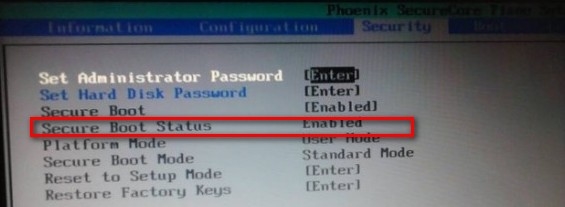
  5. 按 F10 或 Fn+F10 儲存離開,再次進入 BIOS 確認 Secure Boot Status 顯示 Enabled。
  6. 進入系統,水印消失。
第一類 BIOS Secure Boot 狀態

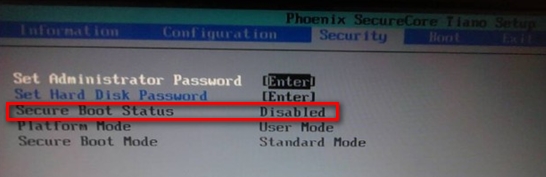
第二類:Security 選單 Secure Boot Status 鎖定關閉、不可更改

  1. 進入 BIOS,切到 Boot 選單,將 Boot Mode 改為 UEFI。
  2. 切到 Exit 選單,將 OS Optimized Defaults 設為 Win8 64bit。
  3. 按 F10 儲存離開,再次進入 BIOS。
  4. 檢查 Security → Secure Boot Status 應已變為 Enabled。
  5. 進入系統,水印消失。
第二類 BIOS 修正前 第二類 BIOS 修正後 Secure Boot Status Enabled

依據機型 BIOS 介面差異選擇對應流程,即可解決 Secure Boot 配置錯誤提示。

Copyright © Windows教程網 All Rights Reserved