Windows 8 控制台中「程式和功能」(舊稱「新增或移除程式」)若在控制台視窗找不到圖示,可能是註冊表 DisallowCpl 值被惡意軟體或誤操作設定所致。以下提供註冊表修復與批次檔重啟總管的完整方案。
regedit 開啟登錄編輯器。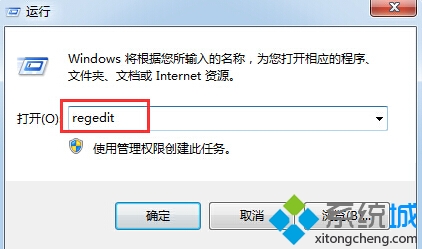
HKEY_CURRENT_USER\Software\Microsoft\Windows\CurrentVersion\Policies\ExplorerDisallowCpl 值,右鍵刪除。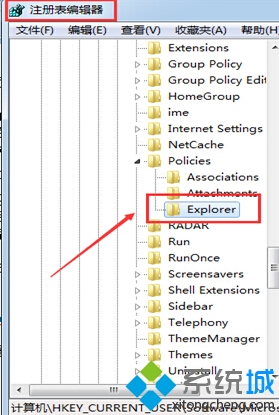
重啟總管.bat:taskkill /f /im explorer.exe
start explorer.exe
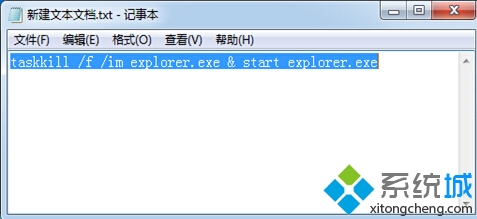
重啟總管.bat(右鍵 → 以系統管理員身分執行)。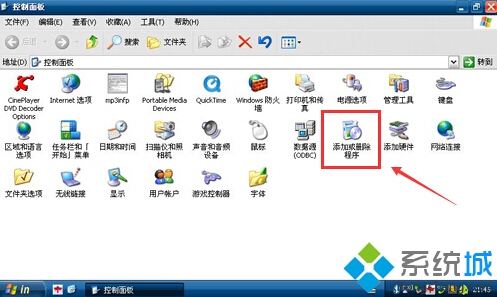
DisallowCpl 為位元遮罩值,控制控制台各項目是否隱藏。刪除該值可恢復預設顯示行為。批次檔強制重啟 explorer.exe 使註冊表變更即時生效。
Win8 郵件 App 透過人脈 App 取得聯絡人:Outlook/Hotmail 帳號自動同步,其他帳號手動加入
Windows 8.1 Build 9385 啟用 Bing 每日鎖定畫面壁紙功能
Win8.1 開機進入 OneDrive 選項而非桌面?安全模式系統還原或修復安裝解決
什麼是 UEFI 開機?Win8 關閉 UEFI 引導改裝 Win7 完整教學
Win8 開始選單全攻略:第三方工具評測與 Win+X 原生替代方案
如何確認 Win8 裝置支援藍牙 4.0 (Bluetooth Smart)?裝置管理員查看 Microsoft Bluetooth LE Enumerator