Windows XP Windows 7 Windows 2003 Windows Vista Windows 綜合教學 Linux 系統教學
Windows 10 Windows 8 Windows 2008 Windows NT Windows Server 電腦軟體教學

Windows 8/8.1 右鍵選單新增 Windows Defender 掃描功能:登錄編輯教學

編輯:Win8 系統應用技巧

操作步驟

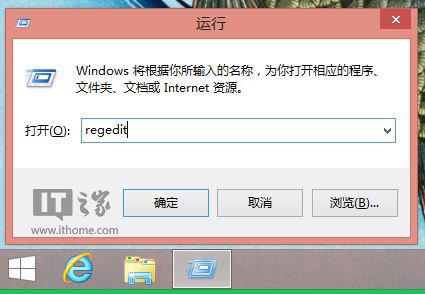
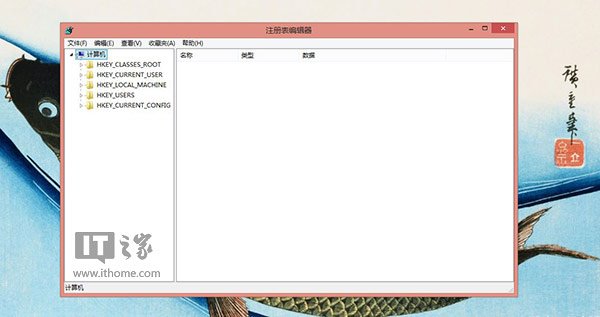
  1. Win+R → regedit 開啟登錄編輯器。
  2. 開啟 regedit 登錄編輯器
  3. 導覽至 HKEY_CLASSES_ROOT\Folder\Shell,右鍵 Shell →「新增」→「機碼」,名稱 WindowsDefender。
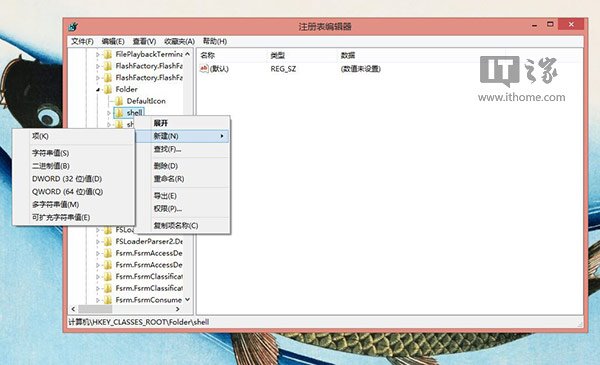
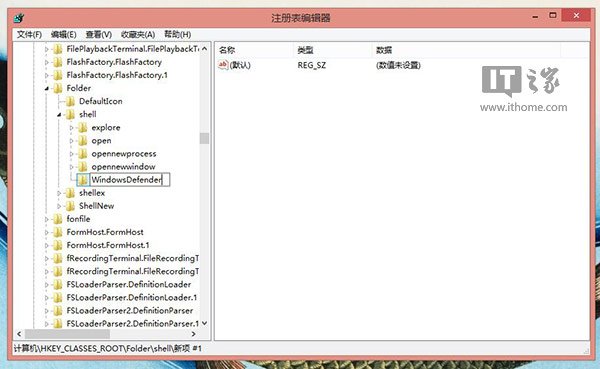
  4. 新增 WindowsDefender 機碼 機碼建立
  5. 在 WindowsDefender 右側新增字串值 Icon,數值資料:%ProgramFiles%\Windows Defender\EppManifest.dll。
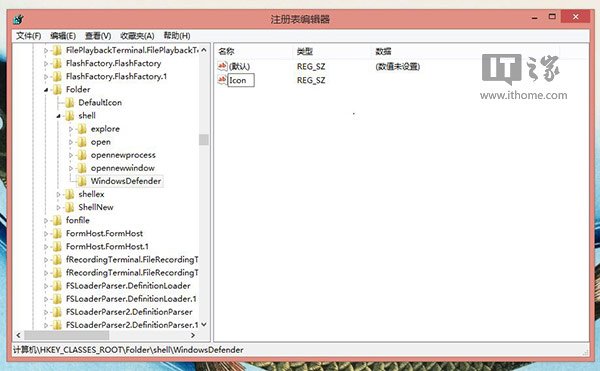
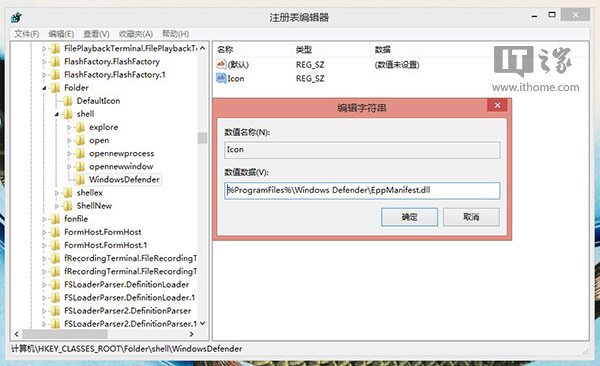
  6. Icon 字串值 Icon 數值
  7. 新增字串值 MUIVerb,數值資料:使用 Windows Defender 掃描。
  8. MUIVerb 字串值
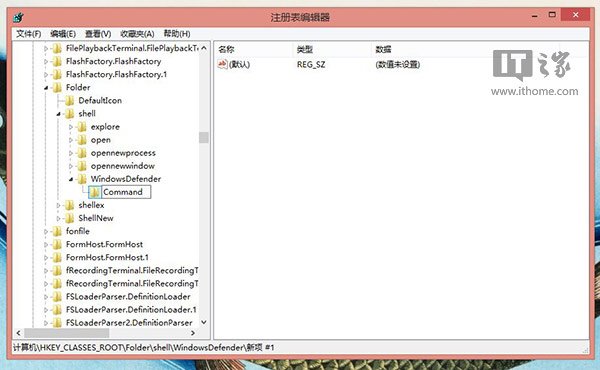
  9. 在 WindowsDefender 下新增機碼 Command。
  10. Command 機碼
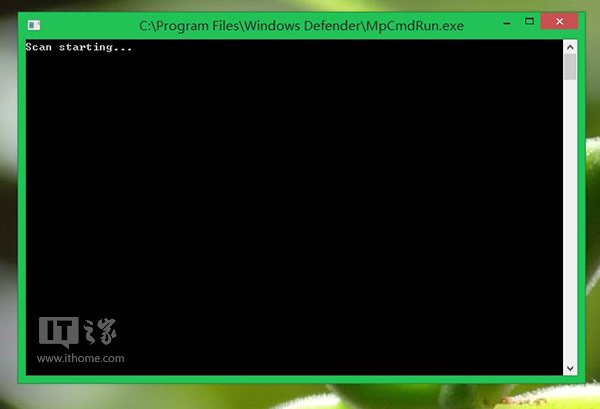
  11. 修改 Command 下的 (預設) 字串值,數值資料:
    "C:\Program Files\Windows Defender\MpCmdRun.exe" -scan -scantype 3 -SignatureUpdate -file %1
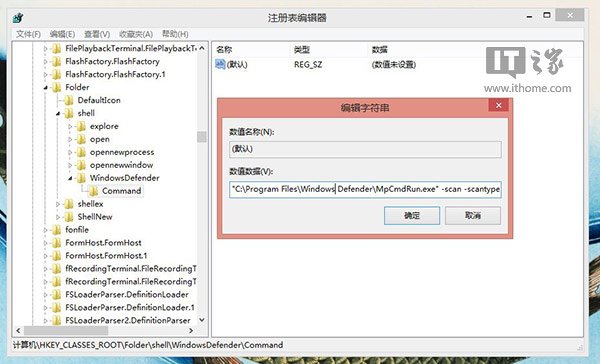
  12. Command 數值
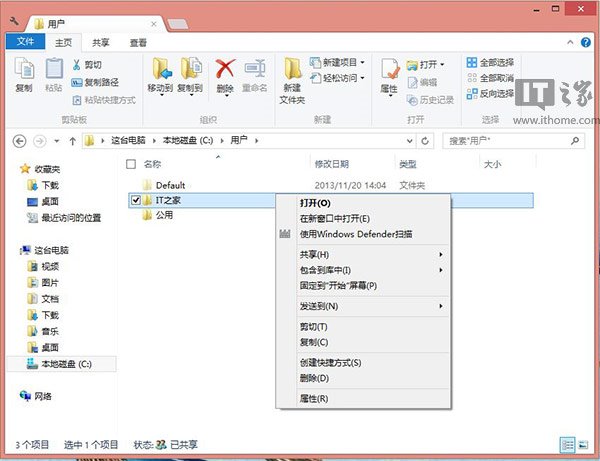
  13. 關閉登錄編輯器,右鍵資料夾/磁碟機即可看到「使用 Windows Defender 掃描」選項。
  14. 登錄完成 右鍵選單效果

限制

僅支援掃描磁碟機或資料夾,無法掃描單一檔案或程式。

Copyright © Windows教程網 All Rights Reserved