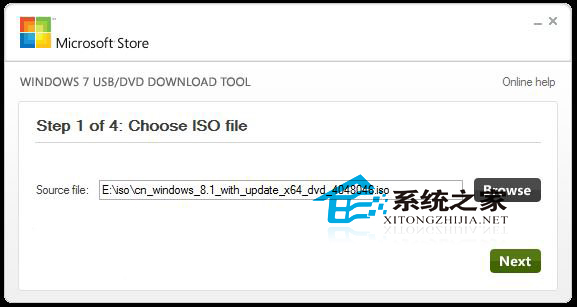
使用 Windows 7 USB DVD Download Tool 製作 Windows 8.1 安裝 USB 時,工具預設格式化 USB 清空資料。透過登錄檔修改工具設定可保留 USB 原有資料 (適用 32GB 以上大容量 USB)。
操作步驟
- 下載安裝 Windows 7 USB DVD Download Tool
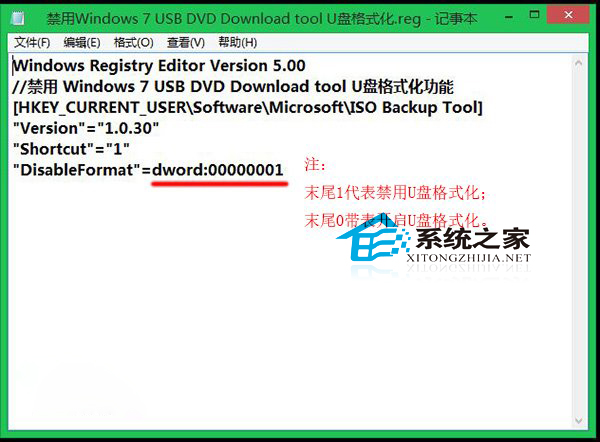
- 新建文字檔貼入以下登錄檔內容,存為
disable_format.reg:
Windows Registry Editor Version 5.00

[HKEY_CURRENT_USER\Software\Microsoft\ISO Backup Tool]
"Version"="1.0.30"
"Shortcut"="1"
"DisableFormat"=dword:00000001
- 雙擊匯入登錄檔
- 執行 Windows 7 USB DVD Download Tool 選擇 ISO、USB 裝置 → 開始複製
- 工具將**不格式化** USB,直接寫入開機檔案與安裝映像
切換模式說明
DisableFormat = 1:保留資料模式 (製作安裝 USB 同時保留其他檔案)DisableFormat = 0:格式化模式 (純淨安裝 USB,建議重要資料先備份)- 修改登錄檔後需重新啟動工具生效
替代工具推薦
- Rufus:開源、免費、支援 UEFI/BIOS、NTFS/FAT32、可選擇不格式化 (勾選「快速格式化」取消)、速度最快
- Ventoy:開源、多 ISO 拖放即用、無需重複寫入、保留資料分區
- MediaCreationTool:Microsoft 官方、自動下載最新版本、標準化流程
注意事項
- 保留資料模式下 USB 需有足夠剩餘空間容納安裝檔案 (~5-8 GB)
- 檔案系統建議 NTFS (支援 >4GB 單檔 install.wim)
- 製作完成後建議在目標電腦測試開機安裝