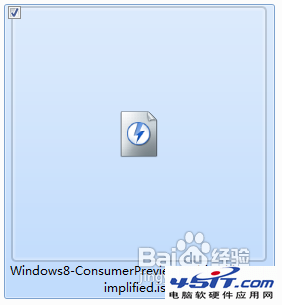
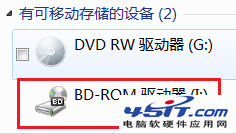
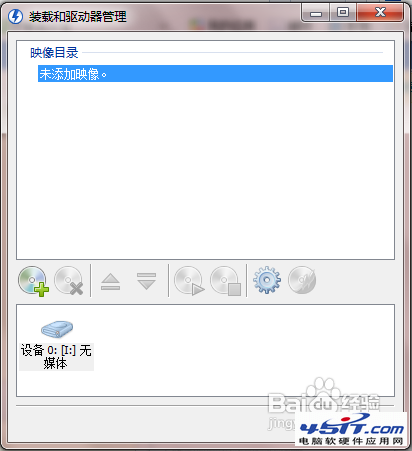
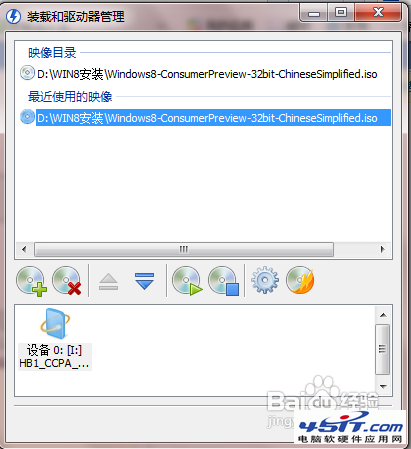
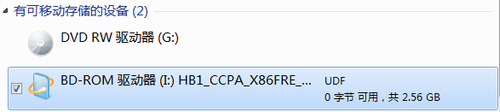
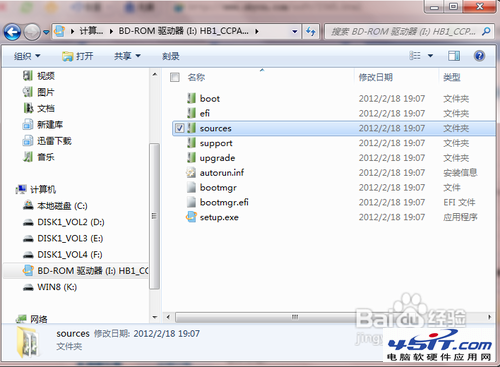
ISO 檔案為光碟映像,無實體光碟機也能安裝。本文教您使用免費虛擬光碟機軟體 DAEMON Tools Lite 掛載 ISO,直接啟動 setup.exe 完成安裝。
setup.exe
sources
提示:Windows 8 內建 ISO 掛載功能 (雙擊 ISO 即可掛載),無需第三方軟體。本文方法適用 Windows 7 或舊版系統。
Windows 8 遊戲相容性實測:主流大作、顯卡驅動、新舊遊戲全方位測試
Win 8.1 歸還使用者選擇權:直進桌面、開始按鈕、桌面背景同步、角導航開關全解析
Windows 8.1 善用「應用程式檢視」打造全螢幕開始選單
Windows 8 切換應用程式完全指南:快速鍵與滑鼠手勢雙管齊下
Win8.1 磁碟清理深度教學:刪除 Windows.old 釋放大量 C 槽空間
Win8 解除安裝應用程式超簡單:滑鼠右鍵/觸控長按 → 選「解除安裝」秒完成
Windows 8 如何關閉應用程式:開始畫面與傳統桌面雙軌操作指南
Windows 8/7/Vista 版本新功能演進圖譜:一張表看懂 11 年系統迭代精華