現象
安裝/升級 Win8.1 後,桌面右下角永久顯示「Windows 8.1 SecureBoot 沒有正確配置」水印,且間彈跳視窗。原因是主板 BIOS 中 Secure Boot 未啟用或金鑰異常。
兩種解決途徑
方案一:進入 BIOS 啟用 Secure Boot (根治)
- 重開機連點 Del/F2 進入 BIOS。
- 尋找 Security/Boot 頁籤下的 Secure Boot,設為 Enabled。
- 儲存離開 (F10),重開機水印消失。
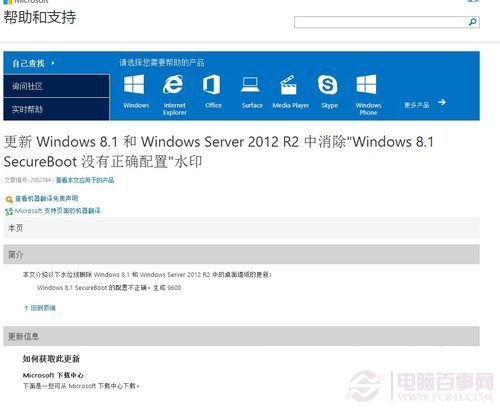
方案二:安裝官方修補程式 KB2902864 (免進 BIOS,治標)
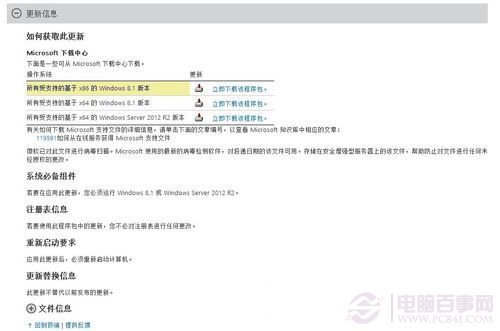
- 下載對應版本:
Microsoft 支援頁面 KB2902864
- 執行安裝,重開機,水印與彈窗消失。
選擇建議
- 懂進 BIOS、主板支援 Secure Boot → 方案一 (根治,安全性最佳)。
- 不想動 BIOS、舊主板不支援、或臨時隱藏水印 → 方案二 (最快)。
補充說明
Secure Boot 設計目的為防止未授權開機載入器 (如 Rootkit、惡意軟體),啟用後僅信任微軟/硬體廠商簽章的開機元件。若需安裝 Linux 等非簽章系統,可在 BIOS 關閉 Secure Boot 或匯入 MOK 金鑰。