Surface Pro 2 用戶在安裝微軟推送的固件更新時,常遇到錯誤代碼 0x80070490(對應 ERROR_NOT_FOUND),導致更新無法安裝、重試失敗、甚至在 Windows Update 歷程記錄中顯示「失敗」且無法重新提供下載。微軟支援論壇已確認此問題,並提供以下經驗證有效的修復流程。
Windows Update 元件存放區 (C:\Windows\SoftwareDistribution) 中的資料庫檔案 DataStore\datastore.edb 可能因先前中斷下載、磁碟錯誤或並行更新衝突而損毀,導致更新代理程式無法正確識別固件更新的適用性與狀態。
net stop wuauservdel "C:\Windows\SoftwareDistribution\DataStore\datastore.edb"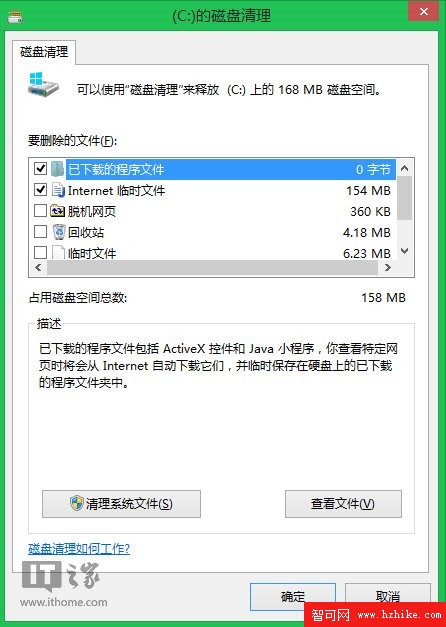
net stop wuauserv
net stop bits
net stop cryptsvc
ren C:\Windows\SoftwareDistribution SoftwareDistribution.old
ren C:\Windows\System32\catroot2 catroot2.old
net start wuauserv
net start bits
net start cryptsvc
.msi 固件安裝程式離線安裝。0x80070490 雖然看似嚇人,實質上多為 Windows Update 本地資料庫狀態不一致所致。透過「停服務 → 刪除 datastore.edb → 磁碟清理 → 重啟 → 重掃描」的標準流程,絕大多數 Surface Pro 2 (含 Pro 3/4/Go/Book 系列) 固件更新失敗案例皆可完美修復。若問題持續,離線手動安裝 .msi 固件包為終極備案。
Win8 如何隱藏「常用應用程式」列表?關閉開始畫面顯示最近開啟項目
Windows 8 安全性能大幅提升:內建 Windows Defender、SmartScreen 篩選、UEFI 安全啟動
Win8 IE10 假死元兇揭秘:騰訊 QQExternal.exe 與 Flash 衝突深度分析
Win8/8.1 免費用 Office 2010 Starter:內建 Word/Excel、含廣告但功能足夠
Windows 8 無線網卡搜尋不到訊號?啟用軟體開關與 WLAN AutoConfig 服務完整排查