Windows 8 預設啟用顯示卡硬體加速以提升 UI 流暢度,但部分舊顯卡/驅動組合會導致畫面閃爍、視訊播放綠畫面、遊戲當機。透過登錄機碼將 Acceleration.Level 設為 5 (完全停用),可徹底關閉硬體加速。
regedit 開啟登錄編輯器。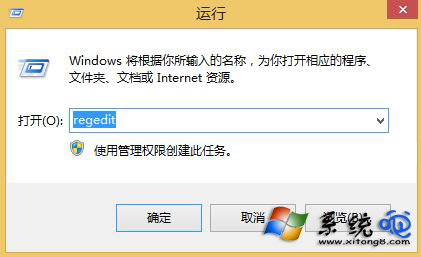
HKEY_LOCAL_MACHINE\SYSTEM\CurrentControlSet\Control\Video\{GUID}\0000{GUID} 因顯卡而異,展開 Video 下各子機碼,找到含 Acceleration.Level 的項目。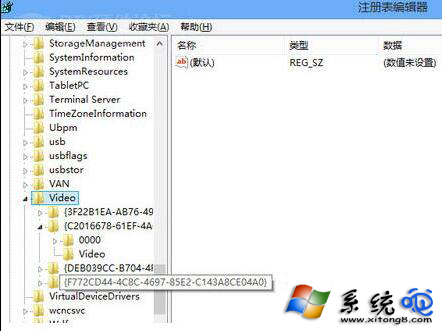
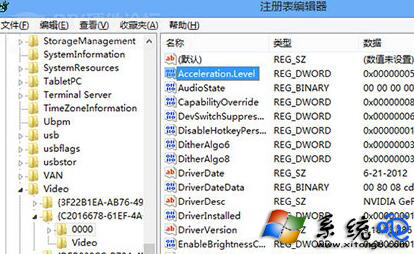
| 數值 | 加速等級 |
|---|---|
| 0 | 完全啟用 (預設) |
| 1 | 基本加速 |
| 2 | 部分加速 |
| 3 | 大部分加速 |
| 4 | 僅軟體繪圖 |
| 5 | 完全停用硬體加速 |
若不想動登錄,可在瀏覽器/播放器/遊戲個別設定中關閉硬體加速 (如 Chrome: 設定→系統→關閉「使用硬體加速」)。需全域停用時,登錄法最徹底。