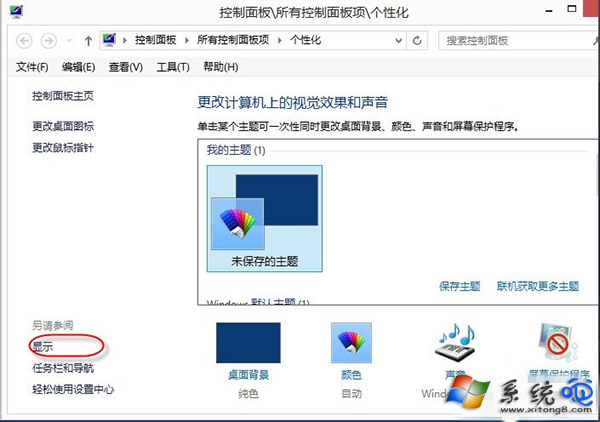
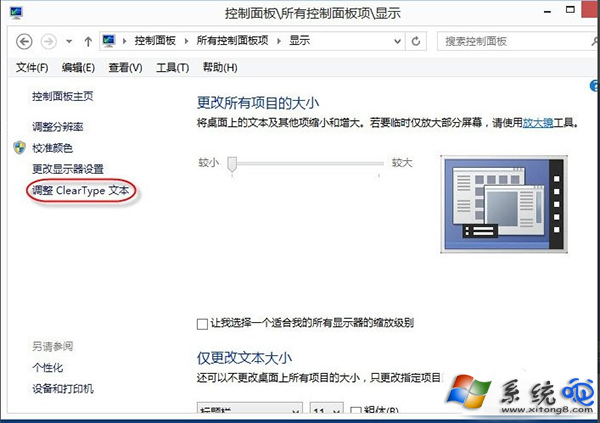
Win8 內建 ClearType 文字微調器,可依螢幕特性優化字體銳利度。右鍵桌面 →「個人化」→ 左側「顯示」→「調整 ClearType 文字」→ 勾選「開啟 ClearType」→ 依嚮導 5 組範例各選最清晰者 → 完成。設定後系統字體邊緣更平滑,閱讀舒適度大幅提升。
建議在室內常用亮度環境下進行調整;更換螢幕或解析度後建議重新微調一次。
Windows 8 設定寬帶連線記住帳號密碼,實現自動撥號上網
Windows 8 確定 10 月 26 日正式上市 聯想昭陽 E49 降價迎接新系統
Windows 8/8.1 舊版桌面軟體相容性解決方案:管理員權限、相容模式、疑難排解工具與相容性中心
Windows 8 必學快捷鍵 20 組:鼠鍵並用玩轉 Metro 與桌面
Windows 8 系統還原與隱藏分區出廠備份關聯設定:diskpart + reagentc 指令教學
Win 8 基礎操作必學:藍牙/Wi-Fi 獨立開關、中文輸入法、Hyper-V 網路、App 設定遷移