Windows XP Windows 7 Windows 2003 Windows Vista Windows 綜合教學 Linux 系統教學
Windows 10 Windows 8 Windows 2008 Windows NT Windows Server 電腦軟體教學

移除 Windows 8 Consumer Preview 桌面浮水印 3 種方法

編輯:Windows 8 系統介紹

Windows 8 Consumer Preview 桌面右下角會顯示「Windows 8 Consumer Preview 評估版本 Build 8250」浮水印,對潔癖用戶相當礙眼。以下提供自動工具法、手動替換系統檔法、以及最簡單的「投影延伸」臨時隱藏法。

方法一:自動移除工具(最推薦)

  1. 下載 Remove-Win8CP(userinit)+Build(shell32) 工具(含 32 位元與 64 位元版)。
  2. 以系統管理員身分執行對應版本(如 RemoveX32-…exe)。
  3. 點選「安裝」→ 重新開機即可移除浮水印。

移除工具介面

方法二:手動替換系統檔(進階)

  1. 以管理員身分開啟命令提示字元(Metro 搜尋「cmd」→ 右鍵「以系統管理員身分執行」)。
  2. 取得 shell32.dll.mui 與 userinit.exe 擁有權並授權:
    takeown /f C:\Windows\System32\zh-CN\shell32.dll.mui
    icacls C:\Windows\System32\zh-CN\shell32.dll.mui /grant Administrators:(F,WDAC)
    icacls C:\Windows\System32\zh-CN\shell32.dll.mui /grant Users:(F,WDAC)
  3. 解壓工具包,將 shell32.dll.mui.new 重命名為 shell32.dll.mui,手動覆蓋原檔。
  4. 同樣取得 userinit.exe 權限並替換,執行 mcbuilder 重建快取,最後安裝 w8loader.exe。

來源:遠景論壇

方法三:投影延伸模式臨時隱藏(最簡單、無需修改系統檔)

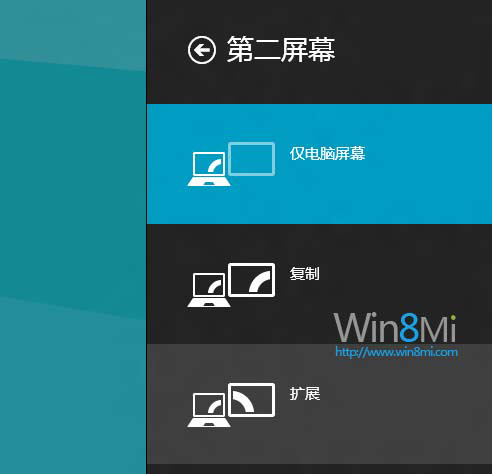
  1. 滑鼠移至螢幕右下角喚出 Charms 列 → 「裝置」 → 「第二個螢幕」 → 選「延伸」。
  2. 浮水印即刻消失。
  3. 再次進入「第二個螢幕」選「僅電腦螢幕」恢復單螢幕模式,浮水印不會再出現(直到下次重開機)。

第二個螢幕設定

依需求選擇適合方式,輕鬆享受乾淨桌面!

Copyright © Windows教程網 All Rights Reserved