Windows XP Windows 7 Windows 2003 Windows Vista Windows 綜合教學 Linux 系統教學
Windows 10 Windows 8 Windows 2008 Windows NT Windows Server 電腦軟體教學

Windows 8 Chrome 無法上傳附件/播放影片解決:停用內建 Flash 衝突

編輯:Windows 8 系統介紹

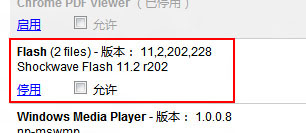
Windows 8 Chrome 內建 Flash (Pepper Flash) 與系統安裝的 Flash ActiveX/外掛衝突,導致部分網站上傳附件無反應、彈不出檔案選擇視窗、線上影片無法播放。解決核心:停用內建 Flash、更新系統 Flash、刪除 Chrome 殘留檔。
修復步驟

  1. Chrome 位址列輸入 `chrome://plugins/` → 找到「Flash (2 files)」→ 點選「停用」
  2. 瀏覽器開啟 → 下載安裝最新 Flash Player (ActiveX for IE / NPAPI for Firefox/其他)
  3. 刪除 Chrome 使用者資料目錄下的 `gcswf32.dll` (通常在 `C:\Users\\AppData\Local\Google\Chrome\Application\\`)
  4. 重新啟動 Chrome 測試上傳/播放

Chrome plugins 頁面停用 Flash

原理分析

  • Chrome 內建 Pepper Flash (PPAPI) 優先級最高
  • 部分舊版網站上傳元件/影片播放器僅相容 NPAPI/ActiveX Flash
  • 雙版本共存導致 API 呼叫衝突、初始化失敗
  • 停用內建 Flash 強制使用系統級 Flash,恢復相容性

現代狀態說明 (2021 年後)

  • Adobe Flash Player 2020/12/31 終止支援,所有瀏覽器已移除 Flash 支援
  • 現代網站全面遷移 HTML5/WebRTC/WebAssembly
  • 本文僅供歷史環境維護參考
Copyright © Windows教程網 All Rights Reserved