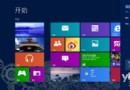
Windows 8 Metro 風格社交應用 (QQ、微博、人人網等) 介面極簡,**登出選單隱藏於 App Bar (應用程式命令列)、頭像選單、或設定頁面中**。本文圖解三種常見登出路徑,不再找不到登出鍵。
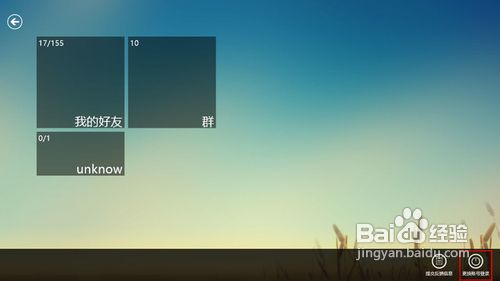
路徑一:App Bar (應用程式命令列) — 最常見
- 應用內右鍵滑鼠 / 觸控從螢幕上緣/下緣向內輕掃 → 呼出底部 App Bar。
- 點選「登出」即可。
路徑二:頭像/狀態選單 — 部分應用支援
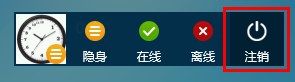
- 點選應用標題列/側邊欄的 **頭像/暱稱/狀態圖示**。
- 彈出選單中選擇「離線」/「登出」/「隱身」。
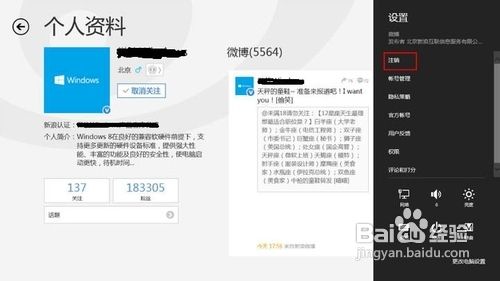
路徑三:設定頁面 — 極少數應用 (如微博)
- 呼出 Charms 列 →「設定」→「選項」/「設定」。
- 在設定頁面中找到「登出」/「帳號管理」→「登出」。
快速辨識技巧
- **優先嘗試右鍵/邊緣輕掃呼出 App Bar**,90% 以上 Metro 應用將登出放此處。
- 若 App Bar 無登出,嘗試點擊頭像/暱稱區域。
- 再無則進 Charms 列「設定」尋找。
掌握三大路徑,Metro 社交應用登出不再迷路,保護隱私從登出開始!