Windows XP Windows 7 Windows 2003 Windows Vista Windows 綜合教學 Linux 系統教學
Windows 10 Windows 8 Windows 2008 Windows NT Windows Server 電腦軟體教學

Windows 8 管理無線網路設定檔:命令列 netsh wlan 顯示/刪除/查看密碼/停用自動連線完全指南

編輯:Windows 8 系統介紹

背景

Windows 8 「網路和共用中心」移除「管理無線網路」圖形介面。需用命令列 netsh wlan 管理所有歷史連線設定檔。

常用指令

  1. 顯示所有設定檔:
    netsh wlan show profiles
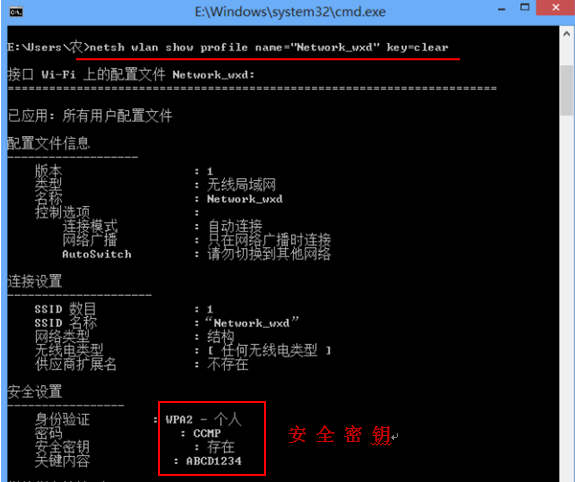
  2. 顯示指定設定檔明文密碼:
    netsh wlan show profile name="設定檔名稱" key=clear
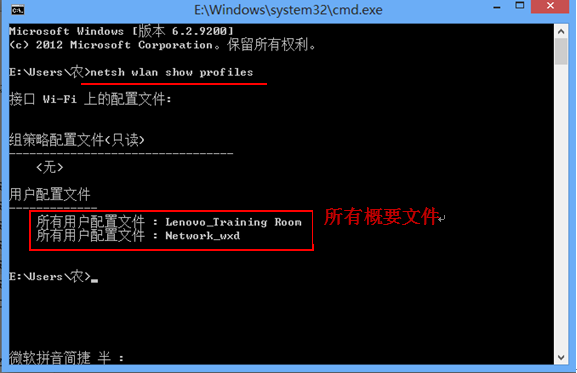
    顯示所有設定檔

    顯示密碼

  3. 刪除指定設定檔:
    netsh wlan delete profile name="設定檔名稱"
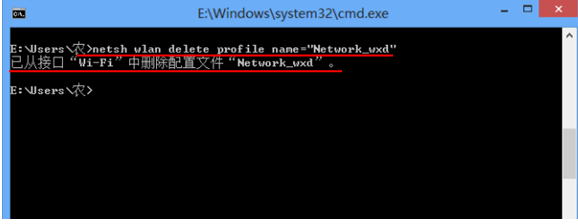
    刪除設定檔

  4. 停用自動連線(改為手動):
    netsh wlan set profileparameter name="設定檔名稱" connectionmode=manual

操作流程

  1. Win+R → 輸入 cmd → Enter。
  2. 依需求輸入上述指令(設定檔名稱含空格時需加雙引號)。

適用場景

  • 清理舊的、不再使用的 Wi-Fi 設定檔,避免自動連上錯誤/惡意熱點。
  • 查看忘記的 Wi-Fi 密碼(需管理員權限)。
  • 防止筆電在特定場合(如公司、學校)自動連線,改為手動控制。

總結

雖無 GUI,netsh wlan 指令集功能完整、可腳本化,是 Win8 管理無線網路設定檔的標準方式,建議熟記上述四條核心指令。

Copyright © Windows教程網 All Rights Reserved