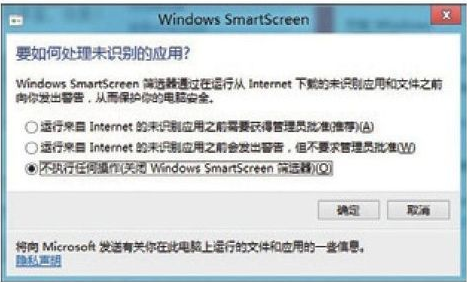
Windows 8 SmartScreen 篩選器會將下載檔案資訊、安裝軟體資訊回報微軟伺服器,可能洩露使用者隱私。透過「動作中心」可暫時停用此功能,平衡安全與隱私。
▲ 選擇不執行任何動作關閉 SmartScreen
權衡:關閉 SmartScreen 會失去對未簽署/惡意軟體的雲端信譽檢查,建議僅在隱私敏感環境暫時停用,平時保持開啟並搭配防毒軟體使用。
Win8 開機無 F8 進入修復模式?新式進階啟動選項操作教學
Win8 登入畫面 DPI 過小?修改登錄值調整縮放比例
Windows 8 開始畫面磚操作技巧:開關動態磚、調整磚大小
Windows 8 檔案總管 Ribbon 介面必備技巧全攻略:四大索引標籤、窗格/配置/排序/顯示、檔案/常用位置、剪貼板/組織/新建/選取、共享/壓縮/安全
Windows 8:壯志未酬身先死?IDC 唱衰升級前景、平板成敗繫於硬體
Win8 Win+X 快速鍵失效?登錄表修復 linkfile/piffile 關聯恢復進階選單
微軟示範 Windows 8 Metro 應用:郵件、照片、通訊錄、IM 整合社群網路
Windows 8 任務管理器大改版:現代化介面、彩色資源視圖、一鍵結束程序