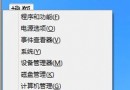
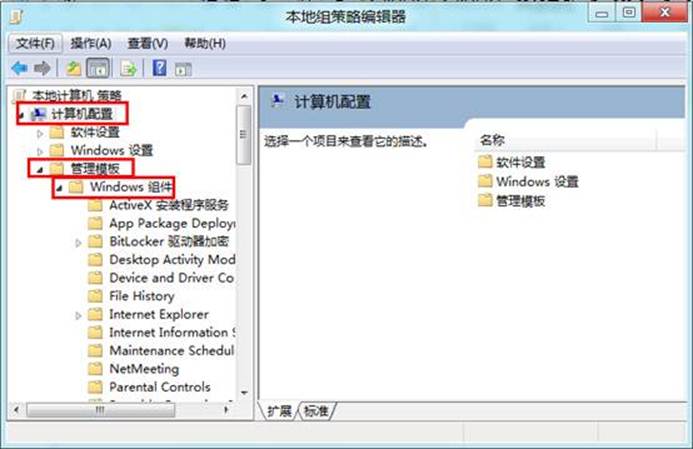
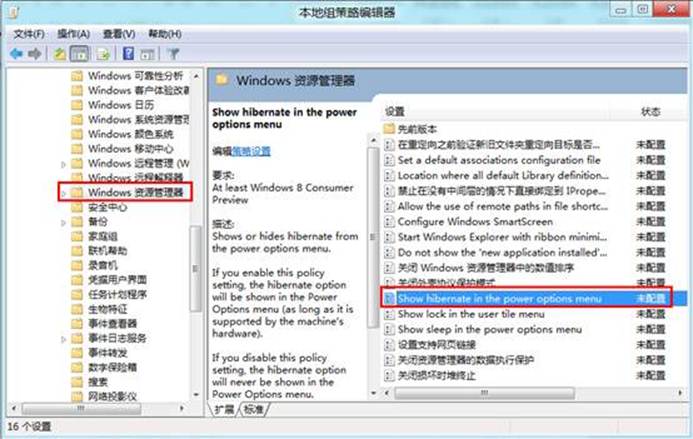
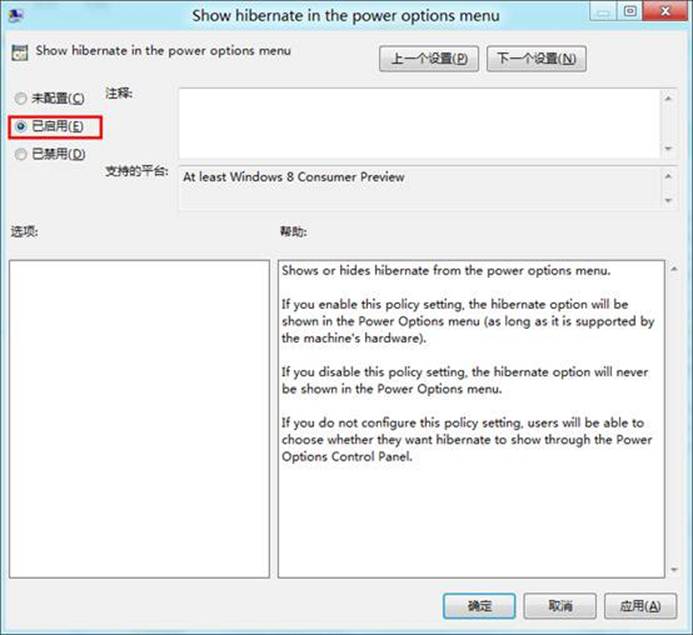
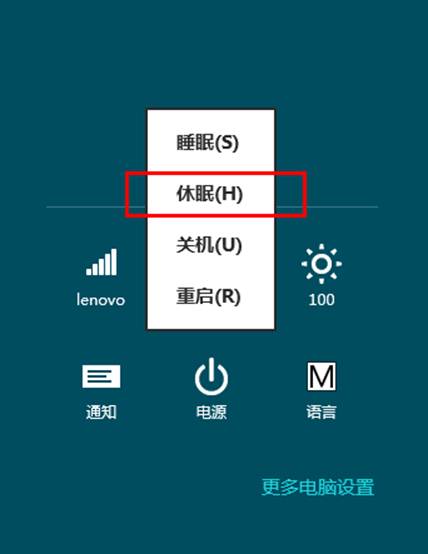
早期 Windows 8 預覽版預設電源選單無「休眠」,需啟用群組原則選項使其顯示。
gpedit.msc 開啟群組原則編輯器。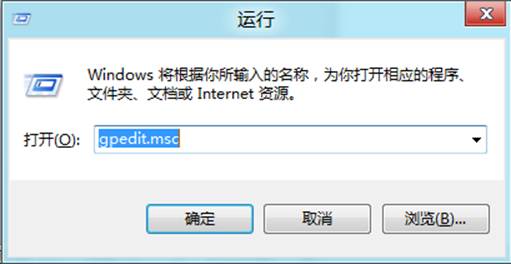
微軟粉絲建議:Win10 RTM 版 Edge 瀏覽器應內建廣告攔截功能
修改 Windows 8 應用商店預設安裝位置,釋放 C 槽空間
Windows 7 + Windows 8 雙系統極速安裝法:VHD 虛擬硬碟 + 兩步驟完成
安裝 Windows 8 後必做 10 大優化,釋放飛一般效能
Win8 啟用附加電源計畫:高效能/省電/平衡模式完整切換教學
Windows 8 「敘述器」啟動、關閉、徹底停用:Win+Enter 開啟、CapsLock+Esc 關閉、修改 Narrator.exe 權限拒絕執行永久停用