在 Windows 8 啟用輕量級 Aero Lite 透明視窗效果
Windows 8 移除了完整的 Aero Glass,但保留了輕量級的 Aero Lite 主題。透過特定操作可啟用其透明效果,兼具美觀與效能。
啟用步驟
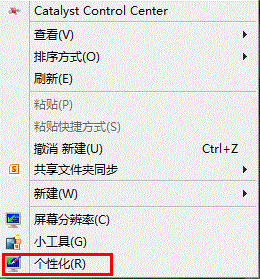
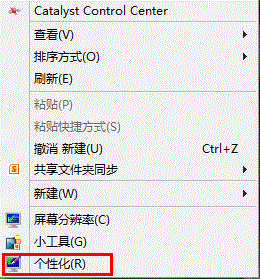
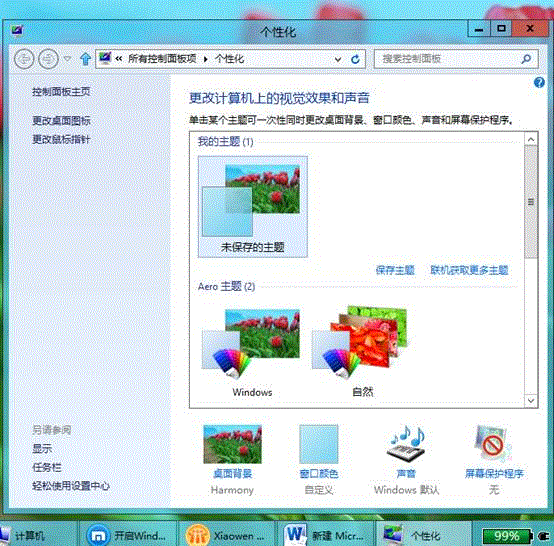
- 桌面右鍵 → 「個人化」。
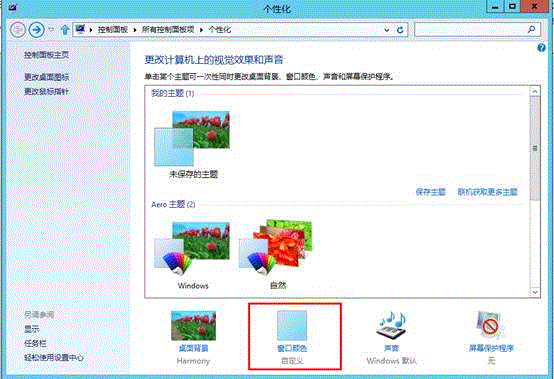
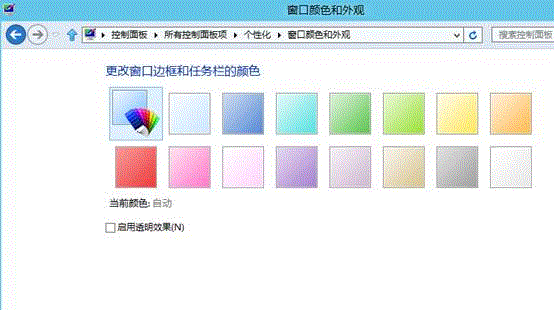
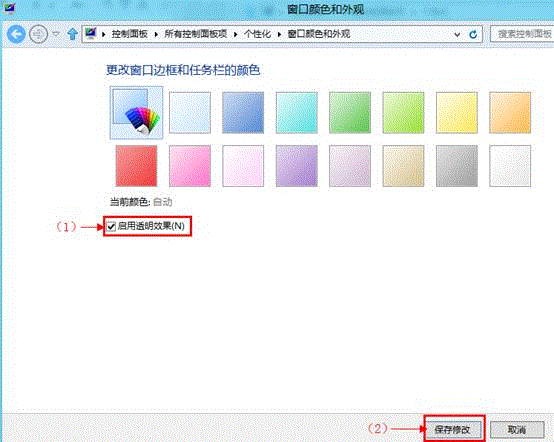
- 確認目前主題為預設「Windows」主題(Aero),點擊「視窗色彩」。
- 取消勾選「啟用透明效果」→ 儲存變更。
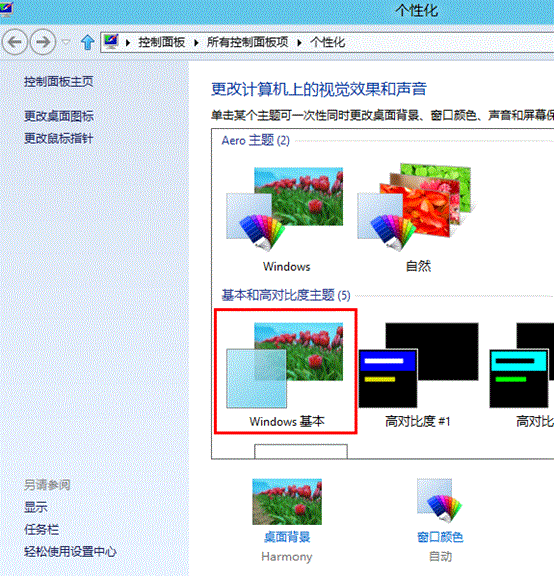
- 再次桌面右鍵 → 「個人化」。
- 在「基本及高對比度主題」下選擇「Windows 基本」。
- 回到步驟 2 的「視窗色彩」視窗,重新勾選「啟用透明效果」→ 「儲存變更」。
- 此時即啟用 Aero Lite 透明效果,視窗邊框呈現半透明質感。
特點說明
- Aero Lite 比完整 Aero 佔用更少顯示記憶體與 GPU 資源。
- 僅提供視窗邊框透明,無翻轉 3D、動態縮圖等進階效果。
- 適合較舊顯示卡或追求效能的用戶。