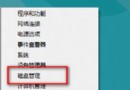
Windows 8.1 使用者常回報工作管理員顯示磁碟使用率持續 100%,導致系統嚴重卡頓。經測試,停用 IPv6 協定與特定系統服務可有效緩解此問題。
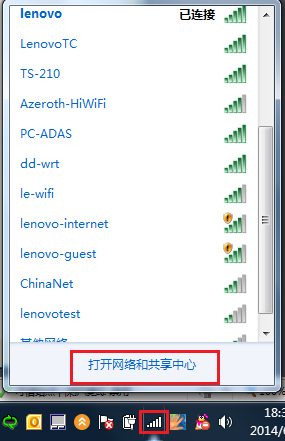
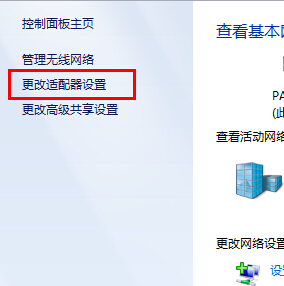
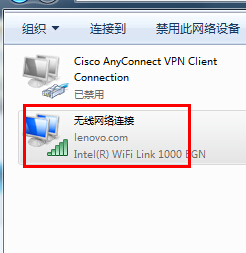
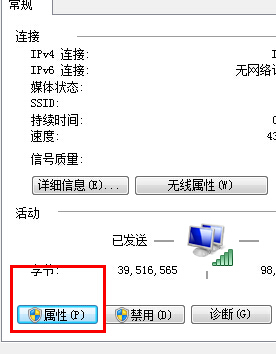
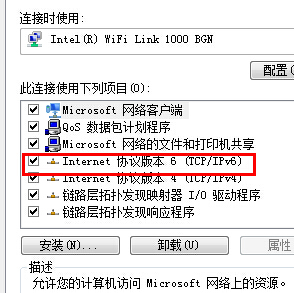
以系統管理員身分開啟命令提示字元,依序執行以下指令:
sc config "DiagTrack" start= disabled
sc stop "DiagTrack"
sc config "dmwappushservice" start= disabled
sc stop "dmwappushservice"
sc config "HomeGroupListener" start= disabled
sc stop "HomeGroupListener"
sc config "HomeGroupProvider" start= disabled
sc stop "HomeGroupProvider"
sc config "SysMain" start= disabled
sc stop "SysMain"
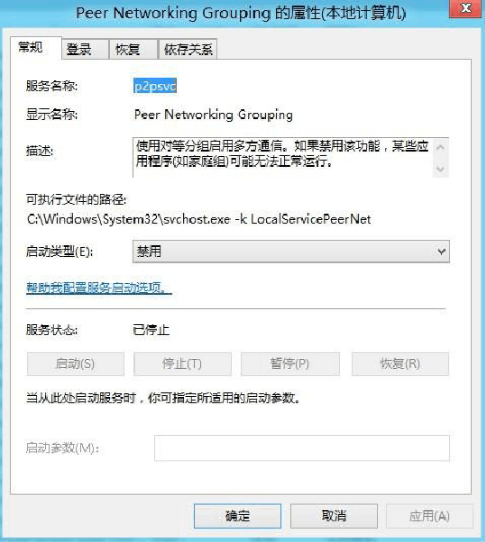
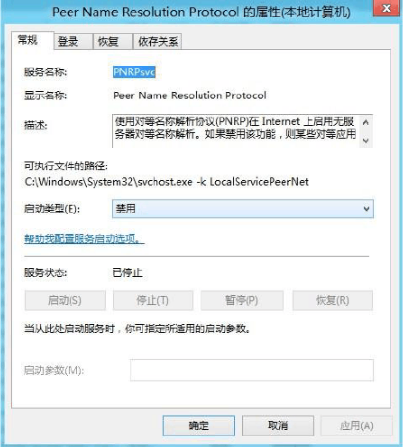
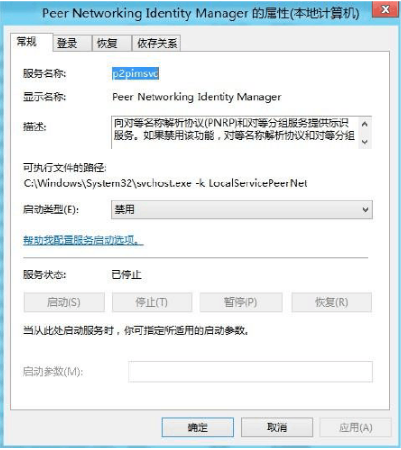
或透過 Win + R → services.msc 圖形介面逐一設定為「已停用」並停止服務。
| 服務名稱 | 功能 | 停用影響 |
|---|---|---|
| DiagTrack | 診斷追蹤服務(傳送遙測資料) | 無法參與客戶體驗改善計畫 |
| dmwappushservice | WAP 推送訊息服務 | 企業環境可能影響 MDM 功能 |
| HomeGroupListener/Provider | 家庭群組網路共享 | 無法使用家庭群組功能 |
| SysMain (Superfetch) | 預先載入常用程式至記憶體 | SSD 環境建議停用,HDD 可能略降開啟速度 |
chkdsk /f /r 檢查磁碟錯誤