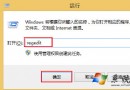
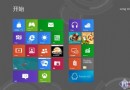
| 功能 | 命令 |
|---|---|
| 關機 | |
| 重啟 | |
| 鎖定 | |
| 登出 | |
| 睡眠 | |
| 休眠 |
C:\ProgramData\Microsoft\Windows\Start Menu\Programs(需管理員權限)。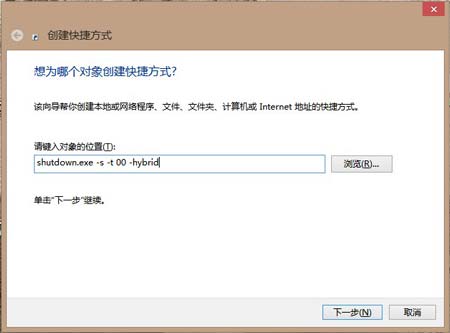
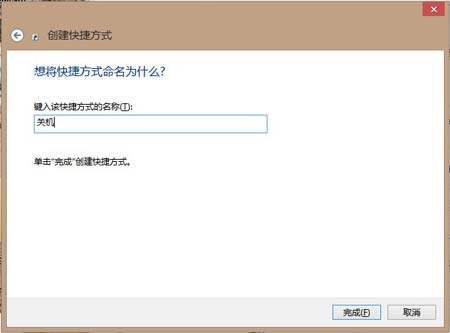
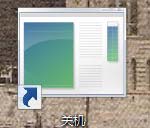
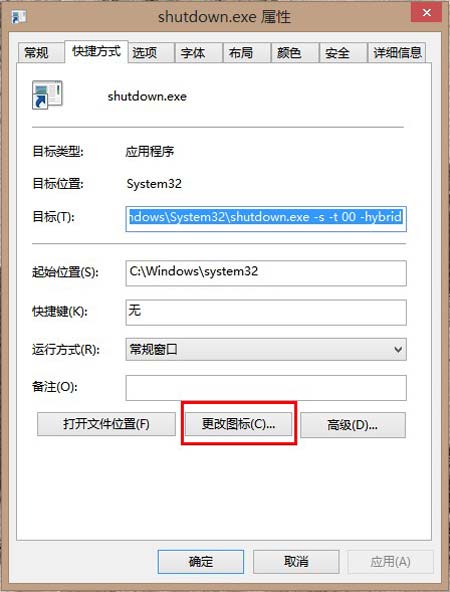
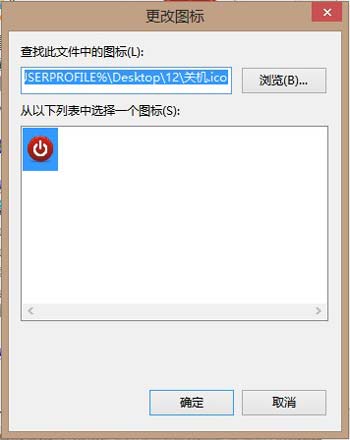
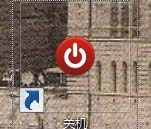
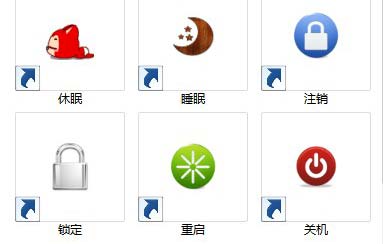
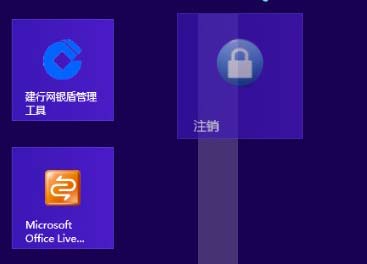
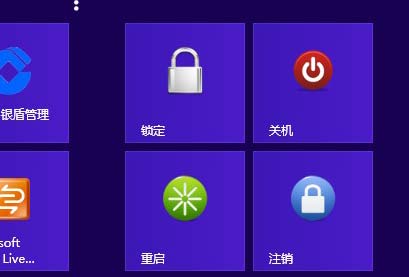
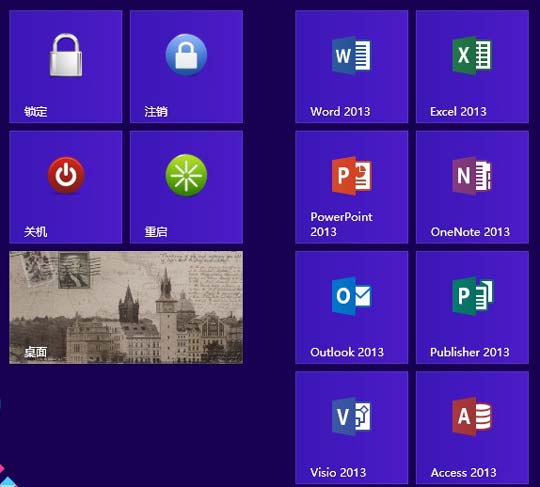
睡眠命令需先關閉休眠功能(powercfg -hibernate off),否則會直接進入休眠。可撰寫兩個批次檔分別處理:
:: 休眠.bat
powercfg -hibernate on
shutdown -h

:: 睡眠.bat
powercfg -hibernate off
rundll32.exe powrprof.dll,SetSuspendState 0,1,0
注意:捷徑目標若非 .exe 可能無法在開始畫面顯示,此為已知限制。
Win8.1 企業版鎖定開始畫面版面配置:PowerShell 匯出佈局 + 群組原則強制套用
Windows 8 系統還原與重設功能實測:取代 Ghost 的傻瓜式還原
Windows 8.1 「電腦設定」全面重設計:九大分類掌控全機能
Windows 8 二十二大核心优势深度解析:启动画面、动态磁贴、搜索、分屏、资源管理器、任务管理器、安全、触控键盘、IE10、SmartScreen 全维度超越 Win 7
Windows 8.1 刪除 windows.old 資料夾:磁碟清理與 Unlocker 雙管齊下
Win8.1 遇上錯誤 651?將 Remote Access Auto Connection Manager 改為自動啟動即可解決