網路連線正常,但工作列右下角網路圖示卻顯示紅叉「未連線」,這是「網路連線狀態」服務與 Explorer 進程同步異常所致。透過重啟相關服務與 Explorer 即可恢復正常顯示。
services.msc → 找到 「Routing and Remote Access」 → 右鍵「停止」。explorer.exe → 右鍵「結束程序」(桌面會變空白,勿關閉工作管理員)。explorer → Enter(桌面重新載入,網路圖示恢復正常)。services.msc 將「Routing and Remote Access」設為「啟動」(或「手動」),完成收尾。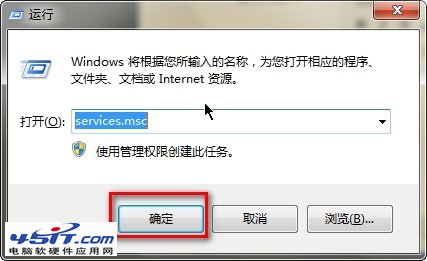
圖 1:服務管理介面
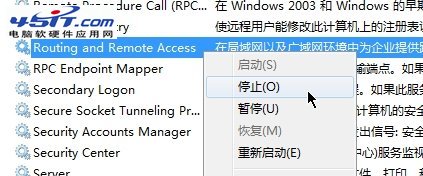
圖 2:停止 Routing and Remote Access
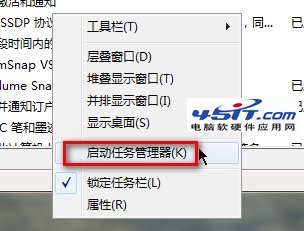
圖 3:結束 explorer 進程
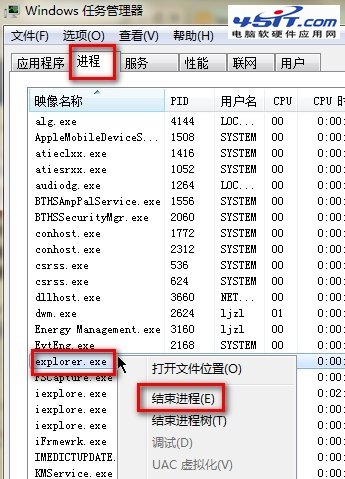
圖 4:桌面僅剩壁紙(正常現象)

圖 5:新增 explorer 任務

圖 6:網路圖示恢復正常
此問題純屬介面顯示異常,不影響實際網路連線,依照流程操作即可快速修正。
Windows 7 安裝驅動程式出現錯誤怎麼辦?缺少 DLL 檔案完整解決教學
從 Windows XP 升級至 Windows 7:為何必須選擇「乾淨安裝」而非就地升級
Windows 7 右鍵「管理」無反應、磁碟機無法重新命名?登錄表修復與 Shell 服務檢查
Win 7 睡眠/休眠/混合睡眠/離開模式完整解析:各模式適用情境與設定技巧
Win7 Windows Media Center 看海量網路影片?設定地區語系啟用「網際網路影片」
打造個人化 Windows 7:登入畫面、主題、開始按鈕、Dock 工具完整美化指南