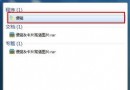
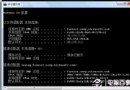
Win7 遊戲總管預設僅顯示微軟自家遊戲,若想加入《CS》等第三方遊戲,需手動寫入註冊表關鍵值(SID、GUID、FileTime)。
PowerShell → Enter。whoami /user → 取得 SID[Guid]::NewGuid() → 產生 GUID[DateTime]::MaxValue.ToFileTime() → 取得 FileTimeHKEY_CURRENT_USER\Software\Microsoft\Windows\CurrentVersion\GameUX\Games\{GUID} 下建立對應值(名稱、路徑、開發商、類型等),再重啟遊戲總管即可看見。
操作註冊表有風險,建議先匯出備份;或改用第三方遊戲啟動器(Steam/GOG Galaxy/Playnite)統一管理更現代化。