Windows 7 對硬體需求較 XP 大幅提升,1GB 記憶體常感吃力。Windows Search 服務負責建立索引提供快速搜尋,但會持續佔用 CPU、磁碟 I/O 與記憶體。若有固定檔案管理習慣、不依賴搜尋功能,停用此服務可明顯降低系統負載。
方法一:透過服務管理員停用 (保留功能可隨時啟用)
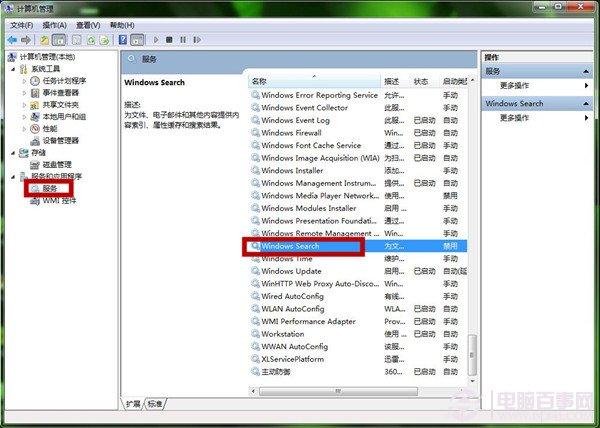
- 右鍵「電腦」→「管理」→「服務與應用程式」→「服務」。
- 找到 Windows Search,雙擊開啟屬性。
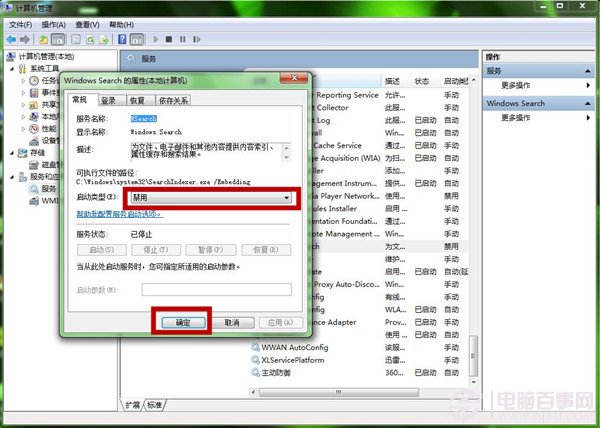
- 「啟動類型」從「自動」/「手動」改為 「停用」。
- 點擊「停止」立即終止服務 → 「確定」。
- 系統提示重新開機,重開機生效。
方法二:透過「開啟或關閉 Windows 功能」移除元件 (徹底移除)
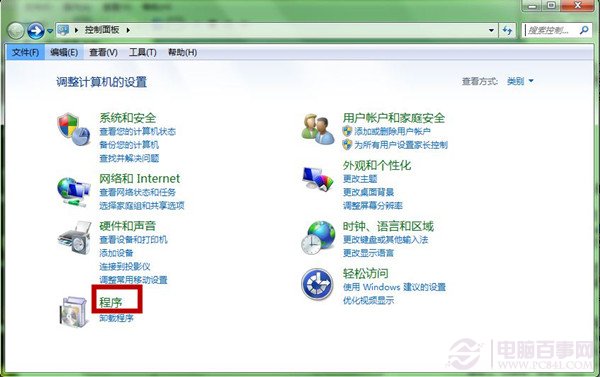
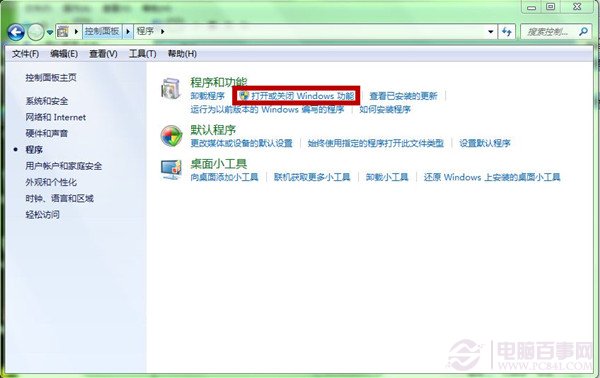
- 「控制台」→「程式」→「程式和功能」→ 左側「開啟或關閉 Windows 功能」。
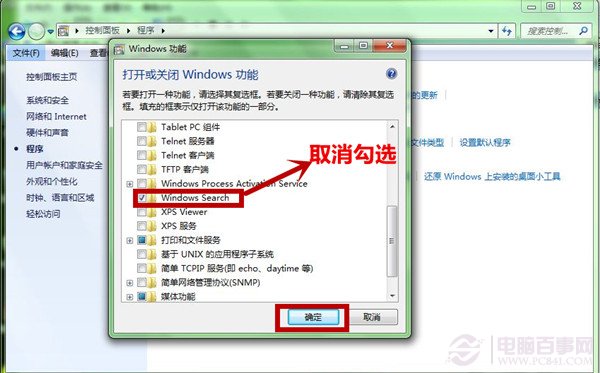
- 取消勾選 Windows Search → 「確定」。
- 系統移除元件並要求重新開機。
影響與建議
- 停用後:開始選單搜尋、總管搜尋框將無法使用 (或極慢)、Outlook 郵件搜尋受影響。
- 建議:SSD + 4GB+ 記憶體環境下影響較小,可保留;HDD + 2GB 以下記憶體建議停用。
- 替代方案:使用 Everything (voidtools) 瞬間全盤搜尋,無索引負擔,體積 < 1MB。