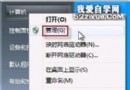
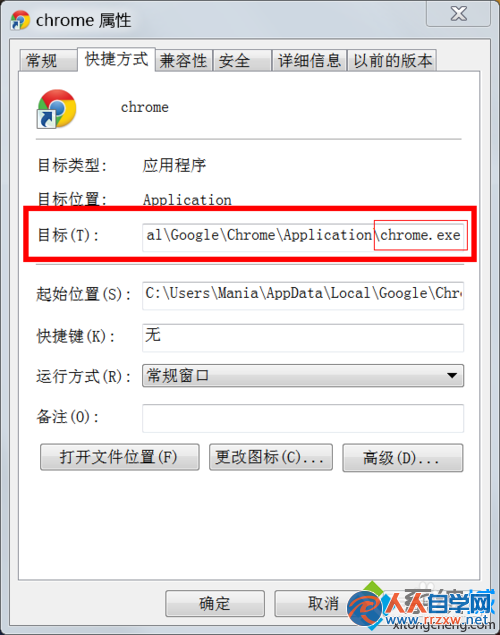
Chrome 捷徑「目標」欄位被竄改附加 https://www.hao123.com 等網址,導致每次開啟都強制導向 hao123。刪除受汙染捷徑、從安裝目錄重建純淨捷徑即可徹底解決。
chrome.exe 結尾。若後方附有網址即被綁定。C:\Program Files (x86)\Google\Chrome\Application\)。chrome.exe,右鍵 > 「傳送到」> 「桌面建立捷徑」。chrome.exe,開啟即為預設首頁/新分頁。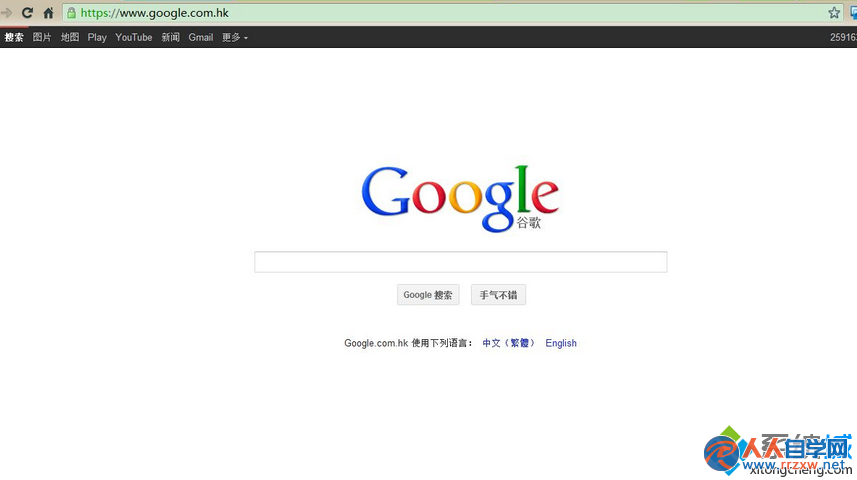
防護建議:
• Chrome 設定 > 「啟動時」 > 選「開啟新分頁頁面」或指定網址。
• 定期掃描惡意軟體 (Malwarebytes、AdwCleaner)。
• 安裝軟體時選「自訂安裝」,取消勾選捆綁推廣 (hao123、2345、360 導航等)。
• 修改捷徑「目標」欄位需管理員權限,標準用戶無法被竄改,建議日常使用標準帳號。