點擊「Windows Update」檢查更新時提示:「Windows Update 目前無法檢查更新,因為服務未運行,您可能需要重新啟動電腦。」但服務管理員中 wuauserv (Windows Update) 顯示「已啟動」},重新啟動服務無效。
C:\Windows\SoftwareDistribution 資料夾損壞或檔案遺失(常見於使用清理工具誤刪、磁碟錯誤、更新中斷)。
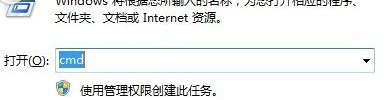
net stop wuauserv
cd %windir%
ren SoftwareDistribution SDold
net start wuauserv
| 指令 | 作用 |
|---|---|
net stop wuauserv | 停止 Windows Update 服務,釋放檔案鎖定 |
cd %windir% | 切換到 Windows 目錄(通常 C:\Windows) |
ren SoftwareDistribution SDold | 重命名快取資料夾,系統將自動重建乾淨資料夾 |
net start wuauserv | 重新啟動服務,觸發重建 |
C:\Windows\SoftwareDistribution 已自動重建。SDold 可保留幾天確認無問題後手動刪除。sfc /scannow 修復系統檔案,或重設 Windows Update 元件(更完整腳本可搜尋「Reset Windows Update Agent」)。重命名 SoftwareDistribution 快取資料夾是解決 Win7/8/10 Windows Update 「服務未運行」錯誤的標準急救法,成功率極高、無需重開機。