Windows XP Windows 7 Windows 2003 Windows Vista Windows 綜合教學 Linux 系統教學
Windows 10 Windows 8 Windows 2008 Windows NT Windows Server 電腦軟體教學

Win7 安裝程式出現錯誤 0x800706D9?啟用 Windows 防火牆服務即可解決

編輯:Win7 系統應用技巧

在 Windows 7 安裝軟體 (特別是 MSI 安裝包、Office、Visual Studio 等) 時跳出 錯誤 0x800706D9 (「沒有可用的伺服器」/「服務未啟動」),主因是 Windows 防火牆服務 被停用,導致 Windows Installer 服務無法透過 RPC 通訊。啟用防火牆服務即可解決。
解決步驟

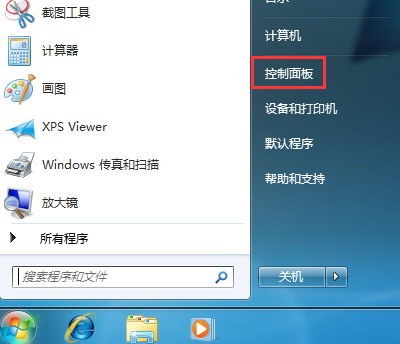
  1. 開啟控制台:開始 → 控制台。
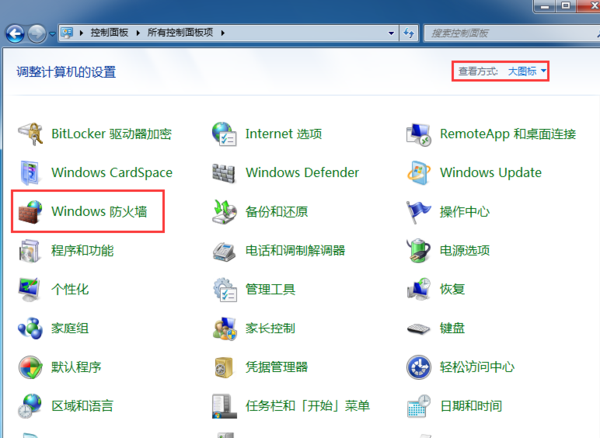
  2. 切換至大圖示檢視:右上角 檢視方式 選 大圖示,點擊 Windows 防火牆。
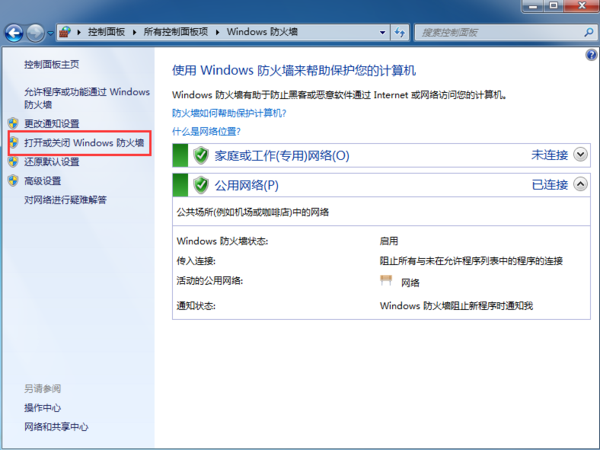
  3. 開啟或關閉 Windows 防火牆:左側點擊 開啟或關閉 Windows 防火牆。
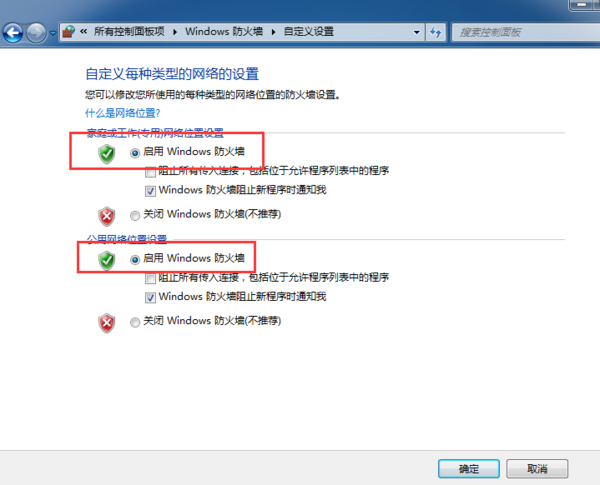
  4. 啟用防火牆:家用或公司 (私人) 網路 與 公用網路 皆選擇 啟用 Windows 防火牆 → 確定。

若防火牆服務無法啟動 (灰色/報錯)

  1. Win+R → services.msc。
  2. 找到 Windows Firewall (Windows 防火牆) → 右鍵 內容 → 啟動類型 改 自動 → 啟動。
  3. 若依賴服務 Base Filtering Engine (BFE) 未執行,先啟動 BFE 再啟動防火牆。
  4. 若仍失敗,執行 sfc /scannow 修復系統檔,或檢查第三方防毒軟體是否強制停用了 Windows 防火牆。

原理說明

Windows Installer 服務 (msiserver) 在安裝過程中需透過 RPC (遠端程序呼叫) 與系統其他服務通訊,而 RPC 依賴 Windows 防火牆服務 (MpsSvc) 管理連接埠開放與安全性。防火牆服務停用會導致 RPC 通訊失敗,拋出 0x800706D9 (RPC_S_SERVER_UNAVAILABLE)。

安全性提醒

啟用 Windows 防火牆後,記得在 允許應用程式通過 Windows 防火牆 中檢查必要程式 (如遠端桌面、檔案共用) 是否已勾選,避免誤攔截正常網路服務。

Copyright © Windows教程網 All Rights Reserved