Win7 內建 IIS(Internet Information Services),透過「開啟或關閉 Windows 功能」即可安裝,適合本機開發測試 ASP.NET、PHP 等網站:
安裝步驟
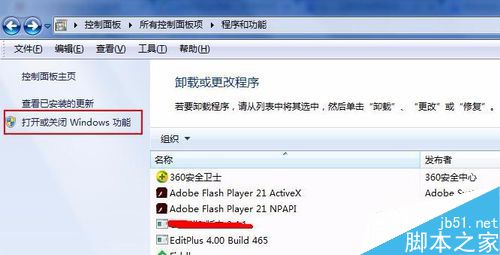
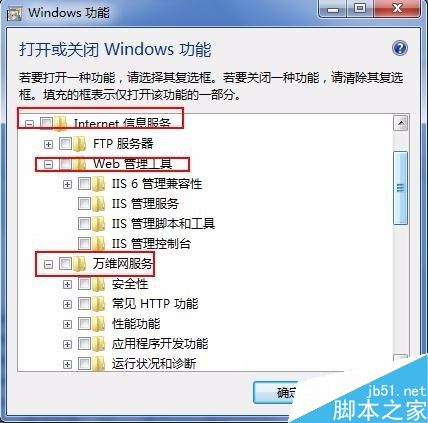
- 「控制台」→「程式和功能」→ 左側「開啟或關閉 Windows 功能」。
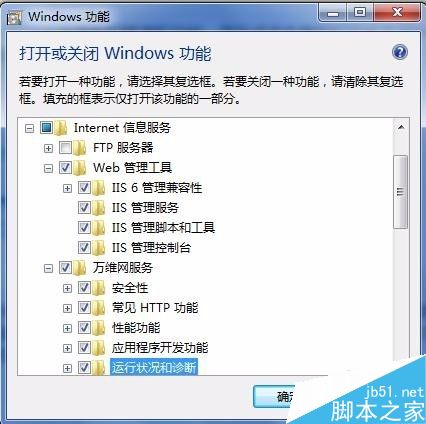
- 勾選以下核心項目(不確定可全選「Internet Information Services」):
☑ Web 管理工具(含 IIS 管理主控台)
☑ World Wide Web 服務 → 「應用程式開發」→ 勾選 ASP.NET、ISAPI 延伸模組、CGI 等
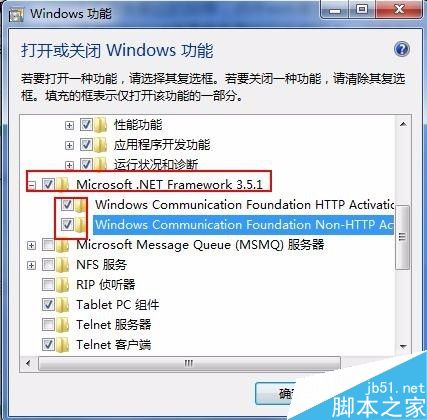
☑ Microsoft .NET Framework 3.5.1 → 勾選「Windows Communication Foundation HTTP 啟用」與「非 HTTP 啟用」
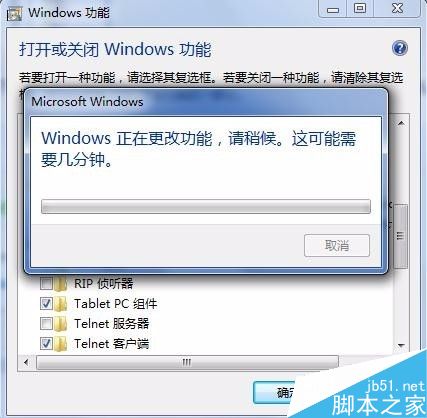
- 確定 → 等待數分鐘安裝完成。
驗證安裝
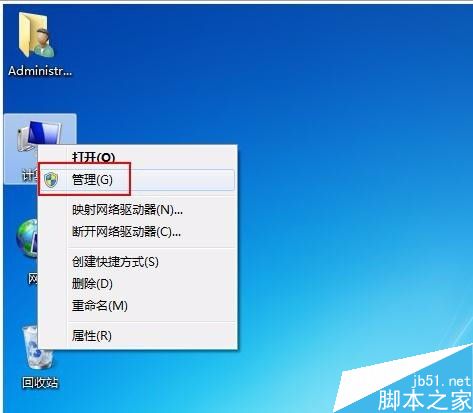
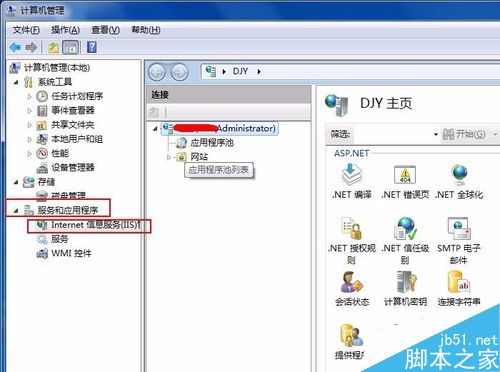
- 「電腦」右鍵 → 「管理」 → 「服務和應用程式」→「Internet Information Services (IIS) 管理員」。
- 左側連線面板展開本機 → 「網站」→「預設網站」→ 右側「瀏覽 *:80 (http)」。
- 瀏覽器出現 IIS 7 歡迎頁面即代表成功。
常見問題
- 連接埠 80 衝突:Skype、Apache 等可能佔用,需變更 IIS 綁定或關閉衝突程式。
- 防火牆阻擋:安裝會自動建立輸入規則,若無法遠端存取請檢查「Windows 防火牆」→「允許應用程式」→ 勾選「World Wide Web 服務 (HTTP)」。
- 權限問題:網站實體路徑需給
IIS_IUSRS 讀取/執行權限。