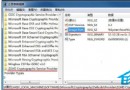
Windows 7 通知區域(系統匣)常殘留已解除安裝程式的圖示,或顯示重複、錯誤的圖示。這是因為 Explorer 快取了圖示資料流(IconStreams、PastIconsStream)於登錄檔中。透過刪除這兩個登錄值並重新啟動 Explorer 即可徹底清理。
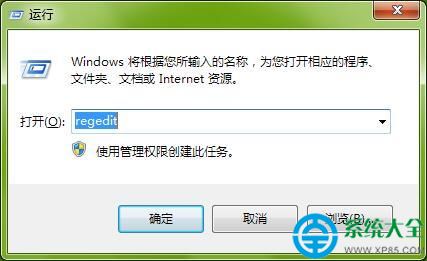
regedit 開啟登錄編輯器。HKEY_CLASSES_ROOT\Local Settings\Software\Microsoft\Windows\CurrentVersion\TrayNotifyIconStreamsPastIconsStreamexplorer.exe 進程,右鍵選擇 「結束程序」。explorer.exe 按 Enter 重新啟動桌面殼層。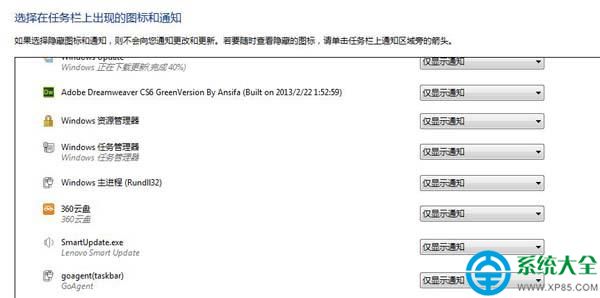
IconStreams:儲存目前通知區域各圖示的圖示資料流與位置資訊。PastIconsStream:儲存歷史曾出現過的圖示資訊(用於「隱藏圖示」展開清單)。TrayNotify 分支備份,以防誤刪其他值。幾秒鐘完成,讓通知區域恢復乾淨、無殘留圖示干擾。
Win7 開機提示「交互式登入程序初始化失敗」原因與三大解決對策
Win7 開機報錯 0xc0000098?修復 BCD 引導檔案拒絕重灌系統
Win7 旗艦版 NVIDIA 控制台在哪?同 92174 內容,搜尋 nvidia 或看系統匣
桌上型電腦 Win7 手動安裝 USB 無線網卡驅動程式教學
Win7 輸入法消失只能打英文?修復語言列與熱鍵切換設定教學
Win7 開機動畫消失不見?三步驟修復 BCD 語言設定找回動畫
Win7 如何修復硬碟壞軌?邏輯壞軌軟體修復 + 物理壞軌隔離完整指南
Win7 更新失敗錯誤 80070003?停用 Update 服務刪除 SoftwareDistribution 快取重設元件