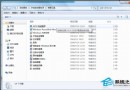
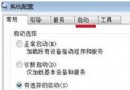
Windows Search 服務提供檔案內容索引與快速搜尋,但在老舊機器(機械硬碟、低記憶體)上持續建立索引會導致硬碟高負載、系統卡頓。透過服務管理嵌入式單元將其設為「停用」可釋放資源。
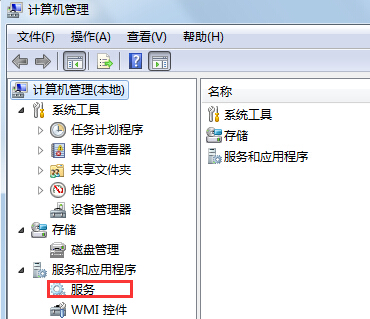
桌面「電腦」右鍵 → 「管理」→「服務與應用程式」→「服務」。
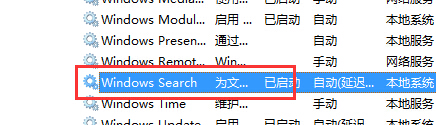
在服務清單中尋找 Windows Search,雙擊開啟屬性。
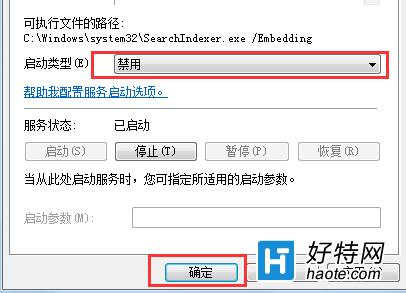
「啟動類型」下拉選單選擇 「停用」 → 若服務正在執行請先點擊「停止」→「確定」套用。
Win7 如何連線 XP 共享印表機?完整圖文設定指南
Win7 開機黑屏僅顯示滑鼠游標:六大排查方案從輕到重
Win7 頑固垃圾檔案清理全攻略:IE 快取、事件日誌、磁碟清理三步走
Windows 7 系統備份完整指南:還原點、系統映像與還原操作
Win7 提升滑鼠指標精確度?一鍵開啟「增強指標精確度」設定
Win7 收到 QQ 訊息音樂音量自動變小怎麼辦?關閉通訊降低音量功能
Win7 用 ncpa.cpl 指令秒開網路連線:Win+R 輸入 ncpa.cpl 直達介面卡設定
Win7 修改 DNS 伺服器位址完整圖文教學 (以 Google 8.8.8.8 為例)