Windows 7 內建的「群組原則編輯器」可設定「停用 Windows Installer」,徹底禁止使用者安裝任何新軟體(僅允許已安裝程式執行)。適合公共電腦、兒童帳號或需嚴格管控軟體安裝的環境。本文提供完整設定步驟。
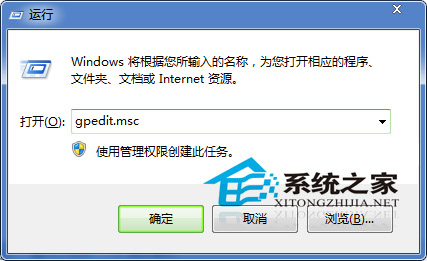
按 Win+R,輸入 gpedit.msc 按 Enter。
依路徑展開:電腦設定 → 系統管理範本 → Windows 元件 → Windows Installer。雙擊右側「停用 Windows Installer」。
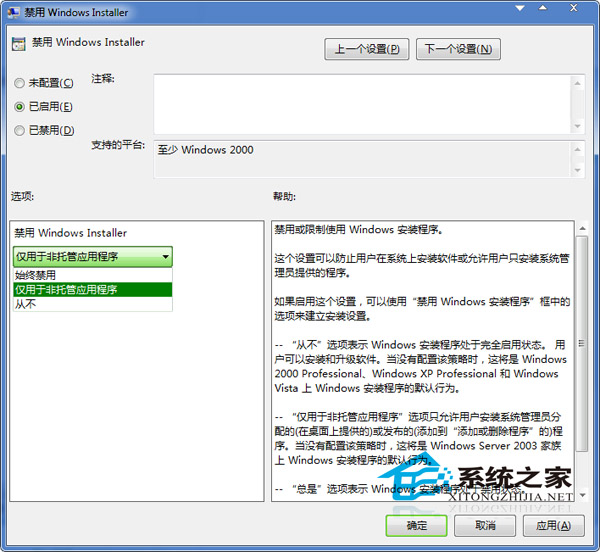
效果:設定生效後,任何使用者(含管理員)嘗試執行 .msi 安裝檔或透過 Windows Installer 安裝程式,皆會被阻擋並提示「系統管理員已停用 Windows Installer」。若需恢復安裝權限,將此原則設為「未設定」或「已停用」即可。
注意:Windows 7 家用版/家用進階版無 gpedit.msc,需透過登錄檔對應機碼 HKEY_LOCAL_MACHINE\SOFTWARE\Policies\Microsoft\Windows\Installer 建立 DisableMSI (DWORD=1) 達成相同效果。