Windows XP Windows 7 Windows 2003 Windows Vista Windows 綜合教學 Linux 系統教學
Windows 10 Windows 8 Windows 2008 Windows NT Windows Server 電腦軟體教學

Win7 開啟網路內容提示「部分控制項已停用」?啟用 Application Experience 服務修復

編輯:Win7 系統應用技巧

Win7 開啟區域連線/網路內容 → 「內容」頁籤提示「部分控制項已停用」,實為 Application Experience 服務 (AE 服務) 被停用,導致相容性/驅動程式數據庫無法載入。啟用該服務設為自動即可修復。

修復步驟

1. 開啟服務管理員

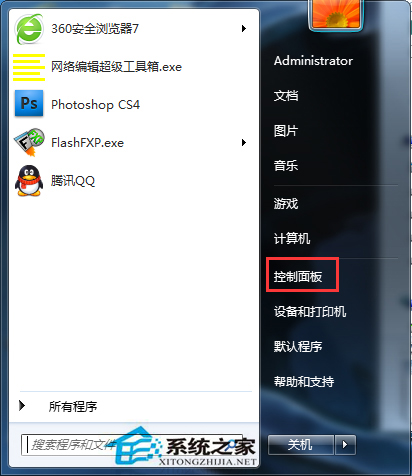
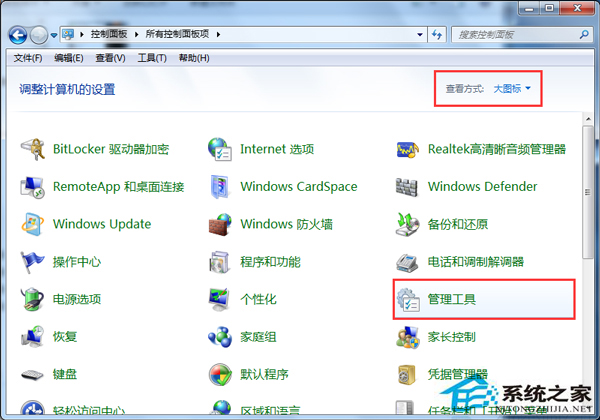
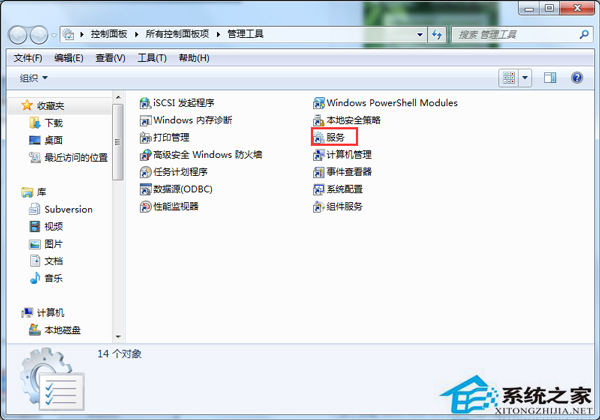
控制台 → 「系統管理」 → 「服務」。

控制台

系統管理

服務清單

2. 啟用 Application Experience 服務

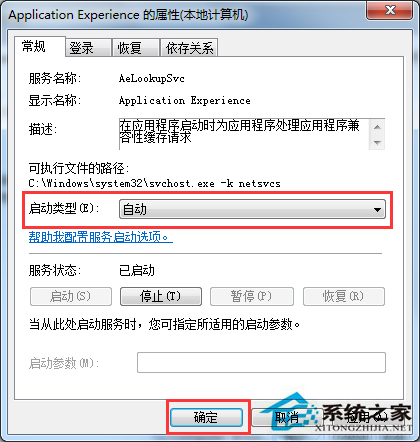
找 Application Experience → 右鍵 → 「內容」 → 啟動類型「自動」 → 若未執行按「啟動」 → 確定。
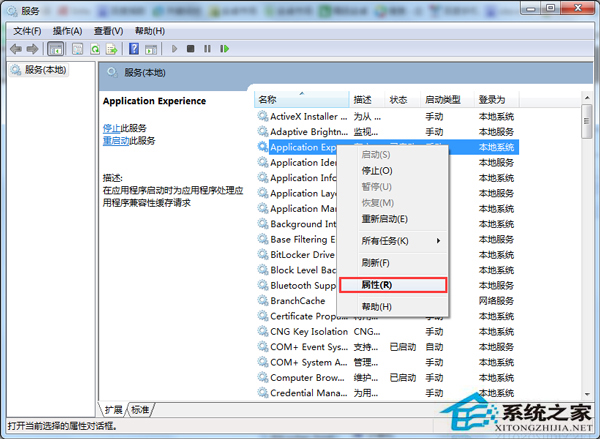
Application Experience 內容

設定自動啟動

3. 驗證網路內容正常開啟

相關服務:若仍異常,同步檢查 Program Compatibility Assistant Service (相容性助手服務) 是否為自動啟動,兩者協同支援應用程式相容性檢測與驅動程式數據庫更新。

Copyright © Windows教程網 All Rights Reserved