Windows XP Windows 7 Windows 2003 Windows Vista Windows 綜合教學 Linux 系統教學
Windows 10 Windows 8 Windows 2008 Windows NT Windows Server 電腦軟體教學

Win7 無法複製貼上檔案?IObit Unlocker 解鎖複製一鍵搞定

編輯:Win7 系統應用技巧

Word 檔案開啟中想複製備份,卻提示「無法複製,檔案正在被使用」?Win7 內建無解鎖功能,本文教你用IObit Unlocker右鍵選單「解鎖並複製」,輕鬆繞過檔案鎖定,複製移動零阻礙。

現象重現

  • Word 2003 開啟編輯 doc.doc → 總管選取該檔 → Ctrl+C → 提示「無法複製,檔案正在被另一個程式使用」。
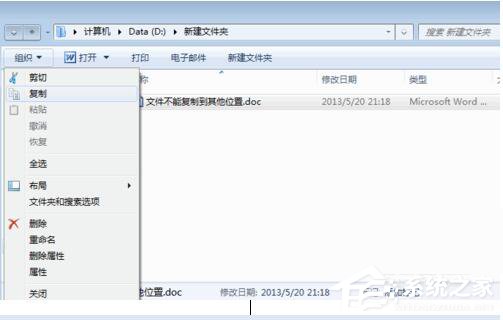
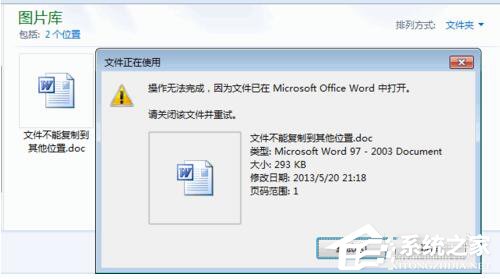
  • 無法複製提示
    檔案被佔用

解決方案:IObit Unlocker

  1. 下載安裝 IObit Unlocker(免費、無廣告、右鍵整合)。
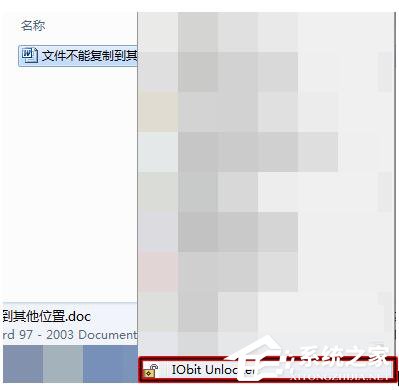
  2. 右鍵目標檔案/資料夾 → 選擇 「IObit Unlocker」。
  3. 右鍵選單 IObit Unlocker
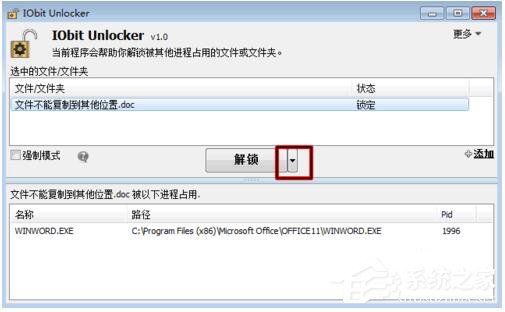
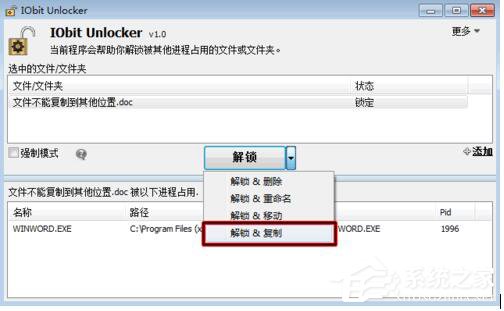
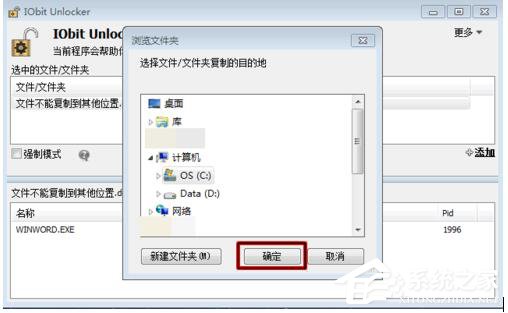
  4. 介面顯示鎖定進程 → 下拉選單選 「解鎖並複製」 → 選擇貼上目的地 → 確定。
  5. 解鎖並複製選項
    選擇目的地
    複製完成

替代工具與原生指令

  • Unlocker(經典、開源、右鍵「解鎖並刪除/複製/移動/重命名」)。
  • 資源監視器:Win+R → resmon → CPU 分頁 → 關聯控制代碼搜尋檔名 → 結束進程 → 複製。
  • Handle (Sysinternals):handle.exe -p 檔名 找 PID → taskkill /PID。

預防建議

  • 複製大檔/重要檔前,先關閉可能開啟該檔的程式(Office、PDF 閱讀器、編輯器、媒體播放器)。
  • 使用 Volume Shadow Copy (VSS) 快照備份:vssadmin create shadow /for=C:,再從快照複製,完全不受鎖定影響。

裝上 IObit Unlocker,檔案被佔用無法複製不再是問題,右鍵一鍵解鎖複製,效率瞬間拉滿!

Copyright © Windows教程網 All Rights Reserved