Windows 7 頻繁彈出「Windows 檔案保護」提示,表示系統檔案可能損毀或被非授權程式取代。可用系統檔案檢查器修復,或透過群組原則停用保護掃描(不建議長期停用)。
cmd,以系統管理員身分執行。sfc /scannow 按 Enter,系統掃描並自動修復損毀檔案。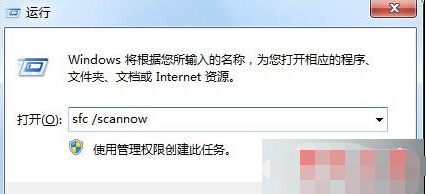
gpedit.msc。電腦設定 → 系統管理範本 → 系統 → Windows 檔案保護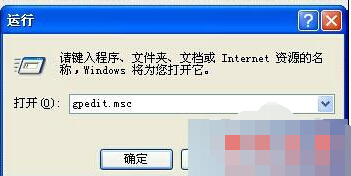
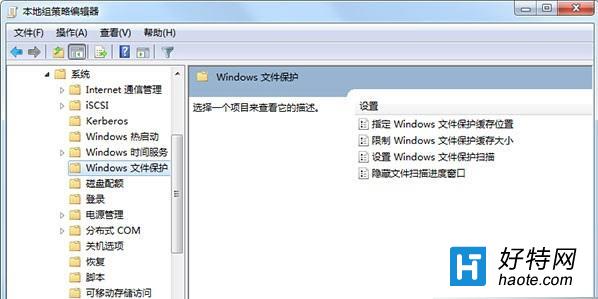
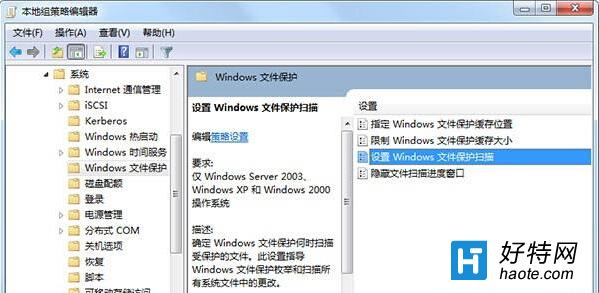
建議:優先使用
sfc /scannow修復根本原因。停用保護掃描僅隱藏提示,系統檔案損毀風險仍在,僅作臨時方案。
笔记本显卡 Radeon HD 8670M 性能详解:核心规格、显存位宽、游戏实测定位
Win7 如何設定 5.1 聲道環繞音效?控制台音效 → 設定揚聲器 → 選 5.1 環繞 → 取消可選揚聲器逐步完成
Win7 開機顯示亂碼?註冊表 InstallLanguage 和 Default 改 0804 (簡體中文) 即刻正常
Win7 電腦中毒症狀與解決:瑞星、360、金山毒霸殺毒軟體推薦
Win7 解決 Internet 安全性設定阻擋開啟檔案的兩種方法
Win7 CMD 視窗內容怎麼複製?右鍵「全選」+ Enter,或「標記」框選複製