Win7 搜尋功能強大,但長期使用會在 C 槽累積大量索引檔(Windows.edb 常達數百 MB 至數 GB)與暫存資料夾,嚴重壓縮系統空間。本文教你精準定位並清除索引檔案,並說明備份還原技巧,讓重灌後搜尋功能秒速恢復。
| 檔案/資料夾 | 預設路徑 | 說明 |
|---|---|---|
| Windows.edb | C:\ProgramData\Microsoft\Search\Data\Applications\Windows\Windows.edb | 核心索引資料庫,體積最大 |
| CiFiles 資料夾 | C:\ProgramData\Microsoft\Search\Data\Applications\Windows\Projects\SystemIndex\Indexer\CiFiles | 內容索引暫存檔 |
services.msc → Windows Search → 停止),避免檔案被鎖定無法刪除。Windows.edb 與 CiFiles 資料夾內容。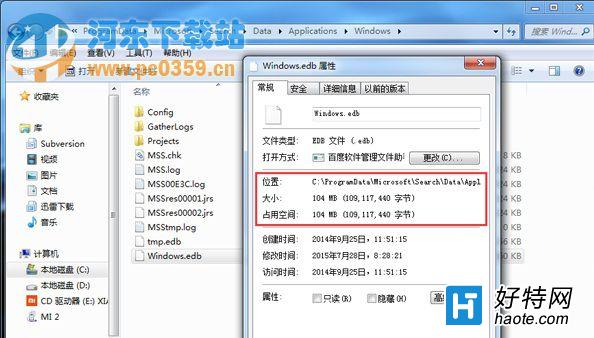
C:\ProgramData\Microsoft\Search\Data\ 資料夾至外接硬碟。若極少使用搜尋功能,可徹底停用:
「控制台」 → 「程式集」 → 「開啟或關閉 Windows 功能」 → 取消勾選「Windows Search」 → 確定重開機。
此舉將永久停用索引並釋放所有相關空間,但檔案搜尋將退回緩慢的「逐檔掃描」模式。
定期清理 Windows.edb 與 CiFiles 是維持 C 槽暢通的關鍵動作。搭配「備份索引資料夾」技巧,重灌系統後搜尋功能即刻滿血復活,兼顧空間與效率。