Windows XP Windows 7 Windows 2003 Windows Vista Windows 綜合教學 Linux 系統教學
Windows 10 Windows 8 Windows 2008 Windows NT Windows Server 電腦軟體教學

Win7 開機「Intel RST 服務未在執行」完整修復:BIOS 設定、服務啟動、相依服務檢查

編輯:Windows 7 系統介紹

開機提示「Intel(R) RST 服務未在執行」,主因是 BIOS 硬碟模式與 Intel Rapid Storage Technology 驅動不匹配,或服務未啟動。完整修復流程:① BIOS 設定硬碟模式(單碟 AHCI、多碟 RAID/AHCI);② 服務管理員啟用 Intel Rapid Storage Technology 服務設為自動;③ 檢查相依服務 WMI、RPC 均為自動啟動;④ 重開機驗證,失效則官網重裝最新 RST 驅動。

詳細修復步驟

  1. 進入 BIOS,確認 SATA 模式:單顆硬碟設 AHCI,多顆設 RAID 或 AHCI。
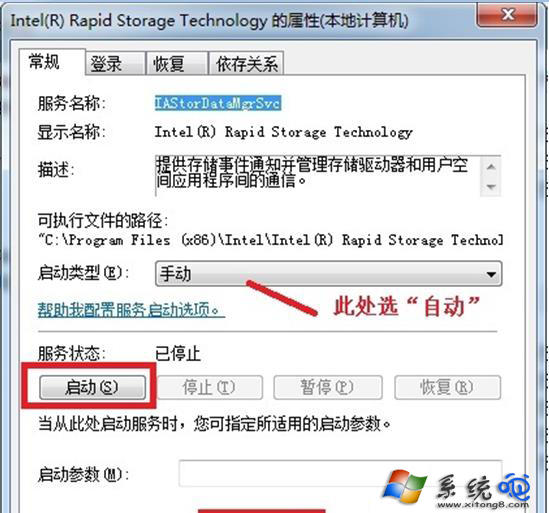
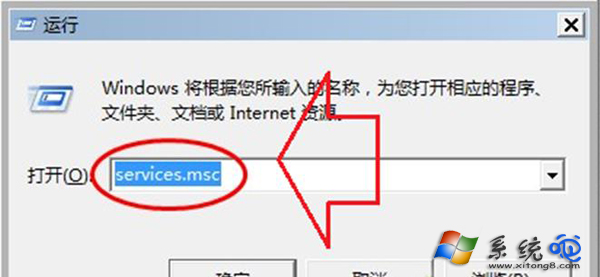
  2. Win+R → services.msc,找到 Intel Rapid Storage Technology(或英文名),啟動類型改「自動」並啟動。
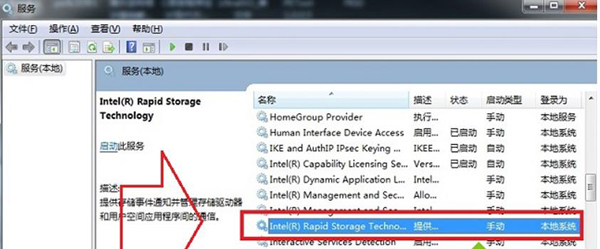
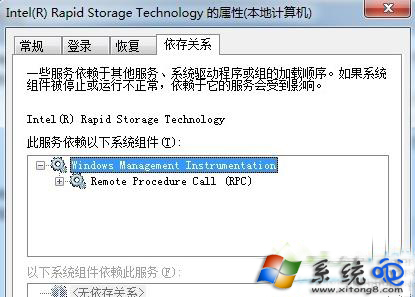
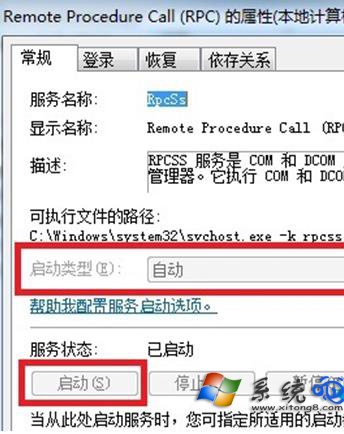
  3. 同視窗找到 Windows Management Instrumentation、Remote Procedure Call (RPC),確認皆為「自動」且已啟動。
  4. 重開機,若提示仍在,至 Intel 官網下載對應作業系統最新 RST 驅動重新安裝。

依序完成上述步驟,可徹底解決 RST 服務未啟動導致的開機警示與潛在效能影響。

Copyright © Windows教程網 All Rights Reserved