每天重複雙擊圖示開啟記事本、QQ、截圖工具、關機?將常用功能釘在桌面右鍵選單 (Context Menu),滑鼠右鍵即達,效率直線上升!本文教你透過登錄編輯器,為 Win7/Win8.1 手動添加自訂右鍵選單項目,附系統元件路徑速查表。
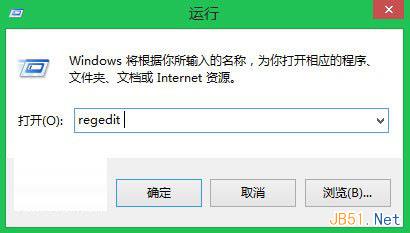
regedit → Enter,開啟登錄編輯器。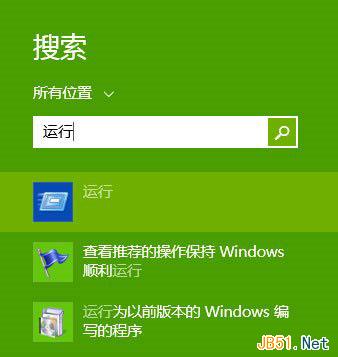
HKEY_CLASSES_ROOT\Directory\Background\shellNotepad、QQ、SnippingTool、SlideToShutDown)。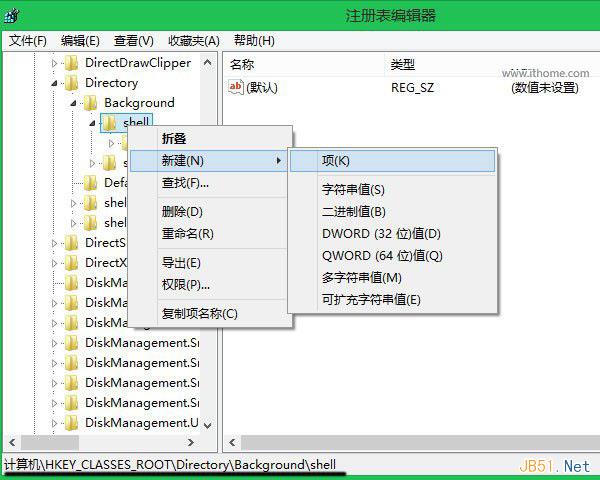
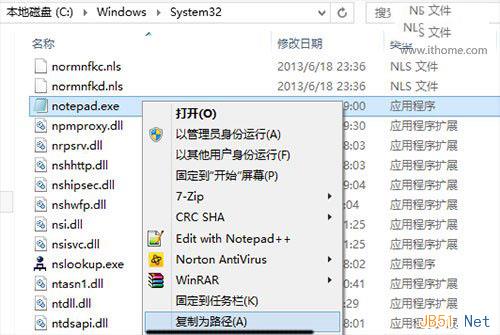
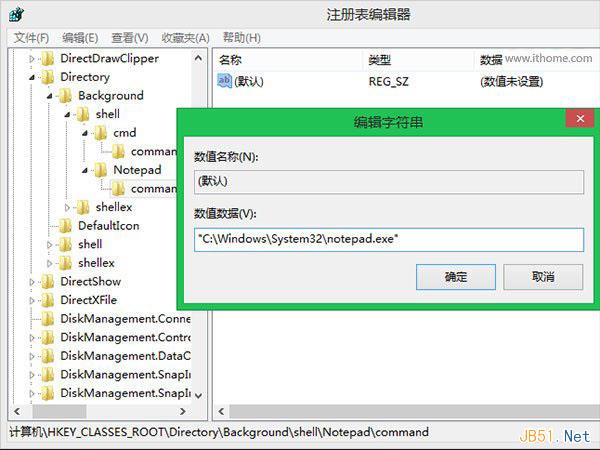
| 選單名稱 | 機碼名稱 | 執行路徑 (command 預設值) |
|---|---|---|
| 記事本 | Notepad | C:\Windows\System32\notepad.exe |
| 截圖工具 | SnippingTool | C:\Windows\System32\SnippingTool.exe |
| 滑動關機 (Win8/8.1/10 專屬) | SlideToShutDown | C:\Windows\System32\SlideToShutDown.exe |
| QQ (需自行確認安裝路徑) | "C:\Program Files (x86)\Tencent\QQ\Bin\QQ.exe" | |
| 計算機 | Calculator | C:\Windows\System32\calc.exe |
| 命令提示字元 | CMD | C:\Windows\System32\cmd.exe |
| 登錄編輯器 | Regedit | C:\Windows\regedit.exe |
Notepad) 下新增字串值 Icon,值資料設為執行檔路徑 (如 C:\Windows\System32\notepad.exe),選單將顯示圖示。Top (置頂) 或 Bottom (置底)。System.FileExtension:.txt) 實現情境式選單。HKEY_CLASSES_ROOT\Directory\Background\shell\Notepad)。設定完成後,桌面空白處右鍵,即可看見自訂選單項目:
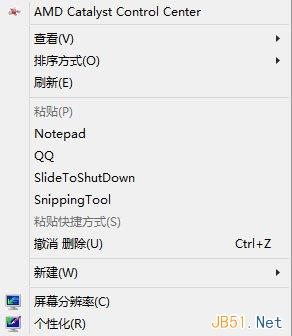
幾分鐘編輯登錄,打造專屬高效右鍵選單。告別「開始功能表找程式」、「桌面圖示堆疊」的低效操作,右鍵即達,讓 Win7/Win8.1 更順手!