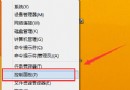
Windows 7 執行 regedit 無反應、閃退、提示「登錄編輯已被系統管理員停用」,常見原因:群組原則鎖定、惡意程式修改註冊表、優化工具誤關閉。提供群組原則解鎖、註冊表修復、病毒掃描三步驟完整解決。
HKEY_CURRENT_USER\Software\Microsoft\Windows\CurrentVersion\Policies\System\DisableRegistryTools = 1(群組原則/惡意程式設定)。gpedit.msc 開啟「本機群組原則編輯器」。
使用者設定 → 管理範本 → 系統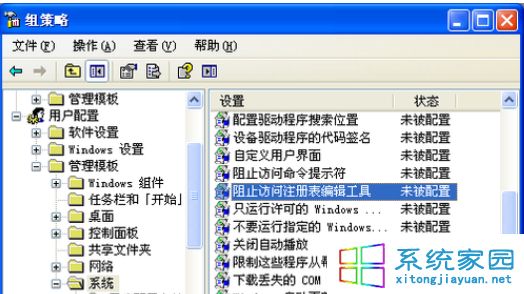

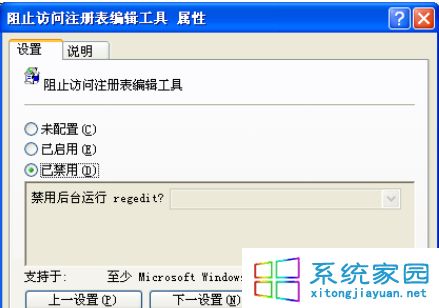
regedit 驗證。以系統管理員開啟命令提示字元,執行:
REG ADD "HKCU\Software\Microsoft\Windows\CurrentVersion\Policies\System" /v DisableRegistryTools /t REG_DWORD /d 0 /f
REG ADD "HKLM\Software\Microsoft\Windows\CurrentVersion\Policies\System" /v DisableRegistryTools /t REG_DWORD /d 0 /f
重新開機或登出登入後生效。
sfc /scannow 修復系統檔案。HKEY_CLASSES_ROOT\regfile\shell\open\command 預設值為 regedit.exe "%1",若被竄改請修正。