Windows 7 便箋開啟時彈出「部分便箋的中繼資料已損毀,便箋已將其還原為預設值」,主因是 InkObj.dll(手寫辨識元件)或 TPCPS.dll(截圖工具元件)註冊資訊遺失或損壞。透過 regsvr32 重新註冊這兩個 DLL 即可修復。
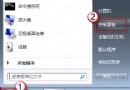
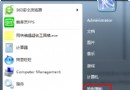
cmd,以系統管理員身分開啟命令提示字元。C:\Windows\winsxs\ 下):dir /s /b C:\Windows\InkObj.dlldir /s /b C:\Windows\TPCPS.dll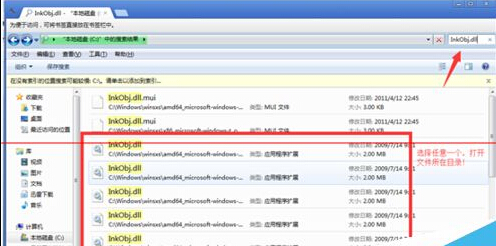
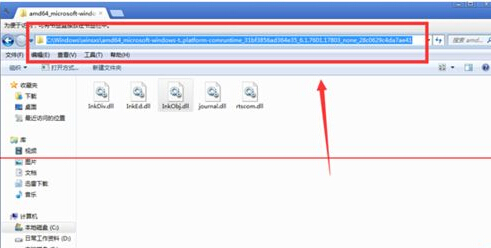
regsvr32 "C:\Windows\winsxs\amd64_microsoft-windows-t..platform-comruntime_31bf3856ad364e35_6.1.7600.16385_none_2685798050c0687a\InkObj.dll"regsvr32 "C:\Windows\winsxs\amd64_microsoft-windows-t..platform-comruntime_31bf3856ad364e35_6.1.7600.16385_none_2685798050c0687a\TPCPS.dll"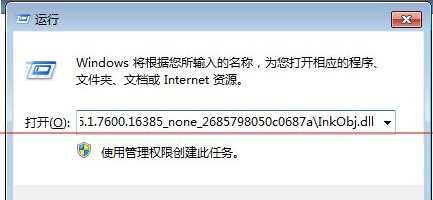
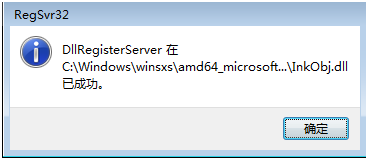
regsvr32 會自動對應 64 位元 DLL,無需指定 %windir%\SysWOW64\regsvr32.exe。sfc /scannow 修復系統檔案。%AppData%\Microsoft\Sticky Notes\StickyNotes.snt,修復前建議備份此檔案。