問題現象
安裝多款播放器、瀏覽器、下載工具後,檔案關聯大亂 (如 .mp3 被下載工具搶走、.avi 被不知名播放器關聯)。逐個右鍵「開啟方式」設定太繁瑣。
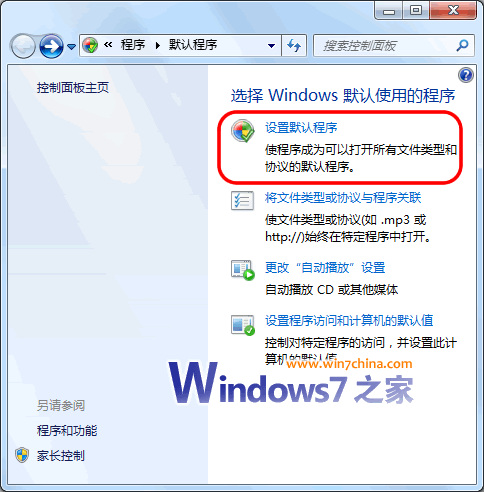
解決方法:預設程式批量關聯
- 「開始」→「預設程式」。
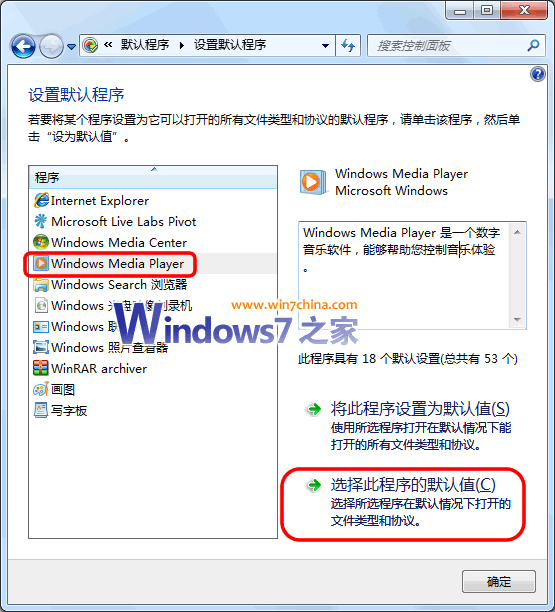
- 左側清單選擇目標程式 (如 Windows Media Player)。
- 點選右下角「設定這個程式的預設值」。
- 在「設定程式關聯」視窗,勾選該程式支援的所有副檔名/協定 (如 .mp3、.wma、.avi、.wmv、.mp4 等) →「儲存」。
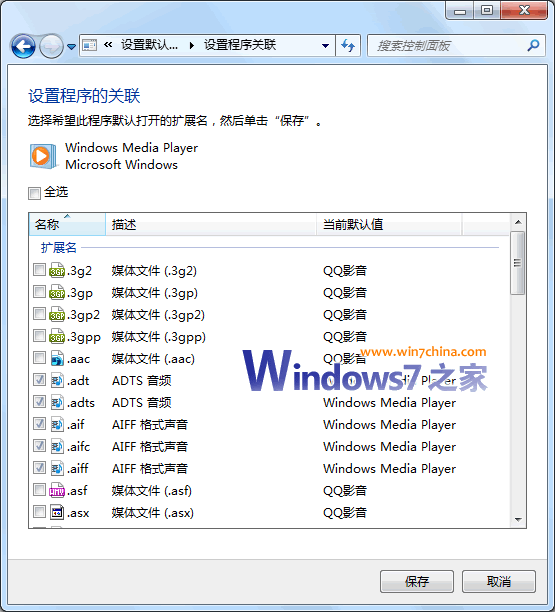
適用範圍
- Windows Media Player、Windows Media Center、Windows Live Mail、Internet Explorer、Windows Live 相簿等微軟自帶程式。
- 第三方程式 (PotPlayer、VLC、Chrome、Firefox、Bandizip 等) 若有註冊到「預設程式」清單,同樣適用。
補充:命令列批量關聯 (進階)
使用 assoc 與 ftype 指令可在批次檔中自動化關聯設定,適合部署腳本:
assoc .mp3=WMP11.AssocFile.MP3
ftype WMP11.AssocFile.MP3="%ProgramFiles%\Windows Media Player\wmplayer.exe" /prefetch:1 "%1"
但 GUI 「預設程式」介面已足夠大多數場景,直觀且不易出錯。