Windows 7 內建 PowerShell 2.0,提供強大的命令列殼層與腳本語言,支援 .NET 物件管線、遠端管理、系統自動化。本文介紹啟動方式、核心指令探索、進程/服務管理、別名建立等實用技巧。
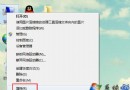
PowerShell → 選「Windows PowerShell」(命令列模式)或「Windows PowerShell ISE」(圖形化整合腳本環境)powershell 切換powershellGet-Command # 列出所有 Cmdlet、Function、Alias、Application Get-Command *service* # 關鍵字篩選 Get-Help Get-Process # 查看指令詳細用法(含語法、參數、範例、備註) Get-Help Get-Process -Examples # 僅看範例 Update-Help # 下載最新說明內容(需網路)
# 列出所有進程
Get-Process

# 依 CPU 使用率排序前 10
Get-Process | Sort-Object CPU -Descending | Select-Object -First 10

# 依 ID 結束進程
Stop-Process -Id 1234

# 依名稱結束進程(支援萬用字元)
Stop-Process -Name "notepad*"

# 取得進程詳細資訊
Get-Process -Id 1234 | Format-List *
Get-Service                    # 列出所有服務
Get-Service wuauserv           # 查詢特定服務
Start-Service wuauserv         # 啟動服務
Stop-Service wuauserv          # 停止服務
Set-Service wuauserv -StartupType Automatic # 設定啟動類型
(Get-Service wuauserv).Status  # 取得狀態屬性
# 建立別名:gp 代表 Get-Process
Set-Alias gp Get-Process
gp  # 直接使用

# 建立別名:np 代表 notepad
Set-Alias np notepad.exe
np  # 快速開啟記事本

# 查看所有別名
Get-Alias

# 匯出別名清單
Export-Alias alias_backup.txt

# 讓別名永久生效:加入 $PROFILE 腳本
notepad $PROFILE
# 在開啟的記事本加入 Set-Alias gp Get-Process 等行,存檔關閉
# 重新開啟 PowerShell 即自動載入
# 瀏覽登錄檔如同檔案系統
Set-Location HKLM:\SOFTWARE\Microsoft\Windows\CurrentVersion
Get-ChildItem
Get-ItemProperty .\Run

# 新增登錄檔值
New-ItemProperty -Path HKCU:\Software\MyApp -Name "Setting" -Value "Enabled" -PropertyType String
Test-Connection google.com        # Ping
Get-NetIPConfiguration            # 取得 IP 設定 (需 Win8+/PS 5.1+)
Invoke-WebRequest https://api.github.com # HTTP 請求
Get-Help about_* 系列主題說明(如 about_Pipelines、about_Foreach)PowerShell 以物件管線取代文字管線,是 Windows 系統管理自動化的核心利器。善用Get-Help與Get-Command自我探索,比背指令更有效。