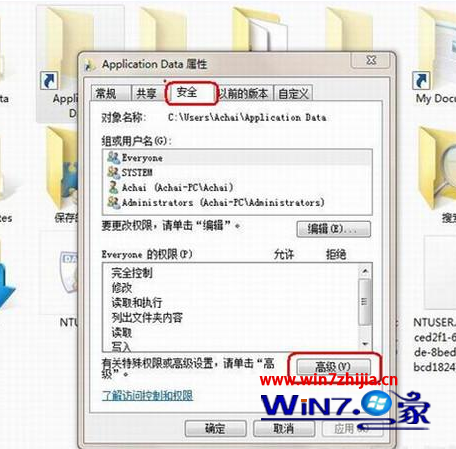
自 Vista 起,Windows 強化檔案所有權與使用者權限控管,常導致「需要管理員權限」無法刪除/修改系統檔案。提供兩種解決方案。
將以下登錄檔內容存為 TakeOwnership.reg,雙擊匯入:
Windows Registry Editor Version 5.00

[HKEY_CLASSES_ROOT\*\shell\runas]
@="管理員取得所有權"
"NoWorkingDirectory"=""

[HKEY_CLASSES_ROOT\*\shell\runas\command]
@="cmd.exe /c takeown /f \"%1\" && icacls \"%1\" /grant administrators:F"
"IsolatedCommand"="cmd.exe /c takeown /f \"%1\" && icacls \"%1\" /grant administrators:F"

[HKEY_CLASSES_ROOT\exefile\shell\runas2]
@="管理員取得所有權"
"NoWorkingDirectory"=""

[HKEY_CLASSES_ROOT\exefile\shell\runas2\command]
@="cmd.exe /c takeown /f \"%1\" && icacls \"%1\" /grant administrators:F"
"IsolatedCommand"="cmd.exe /c takeown /f \"%1\" && icacls \"%1\" /grant administrators:F"

[HKEY_CLASSES_ROOT\Directory\shell\runas]
@="管理員取得所有權"
"NoWorkingDirectory"=""

[HKEY_CLASSES_ROOT\Directory\shell\runas\command]
@="cmd.exe /c takeown /f \"%1\" /r /d y && icacls \"%1\" /grant administrators:F /t"
"IsolatedCommand"="cmd.exe /c takeown /f \"%1\" /r /d y && icacls \"%1\" /grant administrators:F /t"
匯入後,對任何檔案/資料夾右鍵即可見「管理員取得所有權」,點選即自動執行 takeown 與 icacls 授權給 Administrators 群組完全控制權限。
net user administrator /active:yes 啟用。net user administrator /active:no。警告: 啟用內建 Administrator 會繞過 UAC 保護,極易誤刪關鍵系統檔案導致系統損壞。操作前請務必備份重要資料與建立還原點。
登錄檔編輯錯誤可能導致系統無法開機。建議先匯出相關分支備份,或使用系統還原點。