Windows XP Windows 7 Windows 2003 Windows Vista Windows 綜合教學 Linux 系統教學
Windows 10 Windows 8 Windows 2008 Windows NT Windows Server 電腦軟體教學

Windows 7 進不去系統 F8 無效?BCD 引導修復指令拯救開機

編輯:Windows 7 系統介紹

Windows 7 無法開機、F8 進不了進階選項?Windows RE 環境下 BCD 修復指令實戰

系統損壞導致無法開機,且 F8 無法呼叫進階開機選項。若有 Windows 安裝光碟/USB 或 PE 環境,可在命令提示字元修復 BCD 引導設定。

問題現象

開機出現「Windows 啟動修復」或黑畫面閃退,反覆重開機,按 F8 無任何反應。
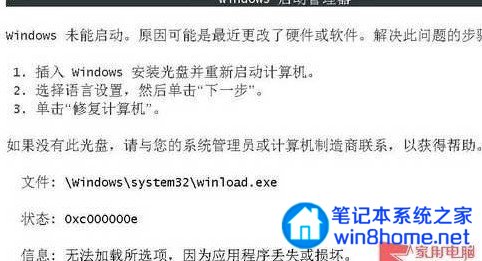
開機錯誤畫面

解決方案:Windows RE 命令提示字元修復 BCD

  1. 從 Windows 7 安裝光碟/USB 或 WinPE 開機。
  2. 2. 選擇語言 → 「修復電腦」 → 「命令提示字元」。 3. 依序輸入以下指令(每行按 Enter):
    cd C:\Windows\System32
    bcdedit /set {default} osdevice boot
    bcdedit /set {default} device boot
    bcdedit /set {default} detecthal 1
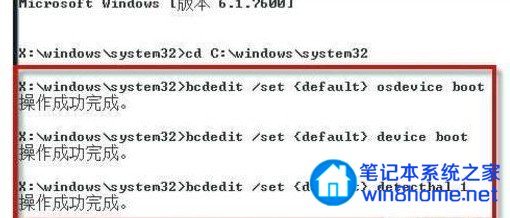
    
BCD 修復指令執行畫面

指令說明

  • osdevice boot:指定作業系統裝置為啟動裝置(自動偵測)。
  • device boot:指定啟動裝置為啟動裝置(同步)。
  • detecthal 1:啟用硬體抽象層 (HAL) 自動偵測,修正 HAL 不匹配導致的藍畫面/無法開機。

驗證與後續

  1. 重新開機,嘗試正常進入 Windows。
  2. 若仍失敗,進入命令提示字元執行 bcdedit /enum 檢視 BCD 內容,確認 osdevice、device 指向正確分區(partition=C:)。
  3. 必要時重建 BCD:bootrec /rebuildbcd、bootrec /fixmbr、bootrec /fixboot。

重要資料優先備份

修復前,在 PE 環境下**優先複製重要資料至外接硬碟**,避免修復過程導致資料遺失。若資料極重要且無備份,建議尋求專業資料救援。

Copyright © Windows教程網 All Rights Reserved