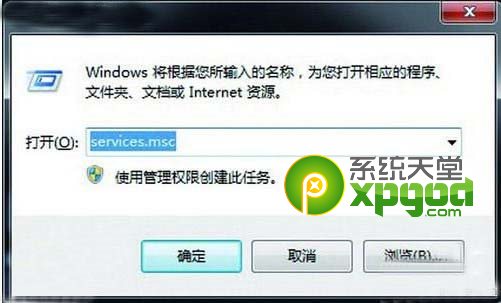
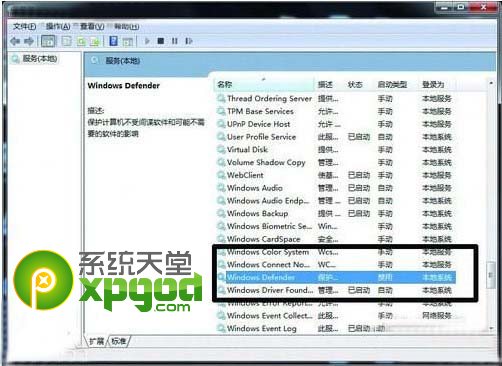
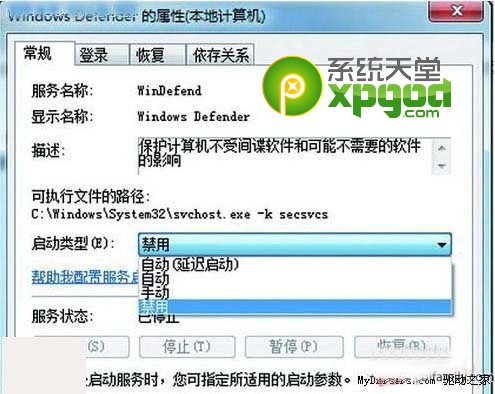
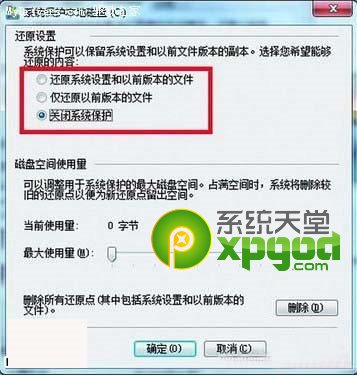
services.msc
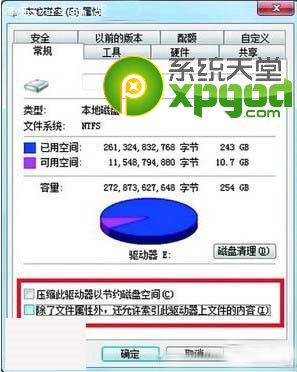
系統盤建議保留索引與壓縮;資料盤 (D/E/F) 關閉可顯著降低硬碟無謂讀寫,延長壽命。
Win7 旗艦版如何查看 DirectX 版本?是否需要安裝 9.0c?
Mac OS X 使用 USB 隨身碟安裝 Windows 7 完整教學 (含 Boot Camp、rEFIt、驅動下載)
Win7 截圖工具截取右鍵選單/下拉選單:Ctrl+PrtSc 一鍵凍結畫面
Win7 旗艦版調整滑鼠靈敏度(指標速度)完整教學
微軟揭秘 Windows 7 開機畫面設計:光影美學與效能平衡
微軟承認 Windows 7 USB/DVD 工具含 GPL 代碼,下周將依協議開源
Win7 視窗切換大全:Alt+Tab、Win+Tab 3D、滑鼠預覽、任務列縮圖全掌握
Win7 記事本輸入文字加入底線:登錄表修改 ifunderline 鍵值