微軟逐漸將 Windows 10 設定介面從傳統風格改為新設計,「個人化」設定已完成變更。但透過修改登錄,仍能從桌面右鍵選單進入傳統控制台「個人化」介面。以下分享將常用個人化項目加入右鍵選單的技巧。
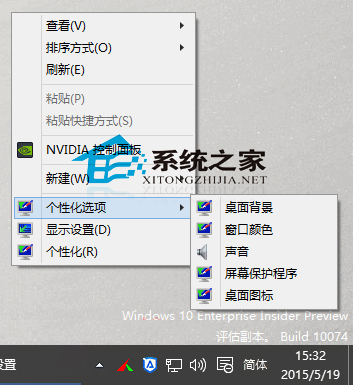
點擊這些項目可直接開啟傳統控制台「個人化」設定頁面。
本法需修改登錄,建議製作並執行登錄腳本檔(.reg)。
新建文字文件,貼上以下代碼:
Windows Registry Editor Version 5.00

; Created by https://winaero.com, reedited by https://ithome.com

[HKEY_CLASSES_ROOT\DesktopBackground\Shell\Appearance]
"MUIVerb"="個性化選項"
"SubCommands"="Wallpaper;Colors;Sounds;Screensaver;Icons"
"icon"="desk.cpl"
"Position"="Bottom"

[HKEY_LOCAL_MACHINE\SOFTWARE\Microsoft\Windows\CurrentVersion\Explorer\CommandStore\shell\Screensaver]
@="螢幕保護程式"
"Position"="Bottom"
"Icon"="desk.cpl"

[HKEY_LOCAL_MACHINE\SOFTWARE\Microsoft\Windows\CurrentVersion\Explorer\CommandStore\shell\Screensaver\Command]
@="rundll32.exe shell32.dll,Control_RunDLL desk.cpl,screensaver,@screensaver"

[HKEY_LOCAL_MACHINE\SOFTWARE\Microsoft\Windows\CurrentVersion\Explorer\CommandStore\shell\Sounds]
@="聲音"
"Position"="Bottom"
"Icon"="mmsys.cpl"

[HKEY_LOCAL_MACHINE\SOFTWARE\Microsoft\Windows\CurrentVersion\Explorer\CommandStore\shell\Sounds\Command]
@="rundll32.exe shell32.dll,Control_RunDLL mmsys.cpl ,2"

[HKEY_LOCAL_MACHINE\SOFTWARE\Microsoft\Windows\CurrentVersion\Explorer\CommandStore\shell\Wallpaper]
@="桌面背景"
"Icon"="%SystemRoot%\\System32\\desk.cpl"
"Position"="Bottom"

[HKEY_LOCAL_MACHINE\SOFTWARE\Microsoft\Windows\CurrentVersion\Explorer\CommandStore\shell\Wallpaper\Command]
@="control.exe /NAME Microsoft.Personalization /PAGE pageWallpaper"

[HKEY_LOCAL_MACHINE\SOFTWARE\Microsoft\Windows\CurrentVersion\Explorer\CommandStore\shell\Icons]
@="桌面圖示"
"Icon"="%SystemRoot%\\System32\\desk.cpl"
"Position"="Bottom"

[HKEY_LOCAL_MACHINE\SOFTWARE\Microsoft\Windows\CurrentVersion\Explorer\CommandStore\shell\Icons\Command]
@="rundll32 shell32.dll,Control_RunDLL desk.cpl,,0"

[HKEY_LOCAL_MACHINE\SOFTWARE\Microsoft\Windows\CurrentVersion\Explorer\CommandStore\shell\Colors]
@="視窗顏色"
"Icon"="%SystemRoot%\\System32\\desk.cpl"
"Position"="Bottom"

[HKEY_LOCAL_MACHINE\SOFTWARE\Microsoft\Windows\CurrentVersion\Explorer\CommandStore\shell\Colors\command]
@="control.exe /NAME Microsoft.Personalization /PAGE pageColorization"
另存為 .reg 副檔名(如 gxh.reg),雙擊執行匯入登錄。
新建文字文件,貼上以下代碼,存為 gxh0.reg 執行:
Windows Registry Editor Version 5.00

[-HKEY_CLASSES_ROOT\DesktopBackground\Shell\Appearance]
[-HKEY_LOCAL_MACHINE\SOFTWARE\Microsoft\Windows\CurrentVersion\Explorer\CommandStore\shell\Screensaver]
[-HKEY_LOCAL_MACHINE\SOFTWARE\Microsoft\Windows\CurrentVersion\Explorer\CommandStore\shell\Sounds]
[-HKEY_LOCAL_MACHINE\SOFTWARE\Microsoft\Windows\CurrentVersion\Explorer\CommandStore\shell\Wallpaper]
[-HKEY_LOCAL_MACHINE\SOFTWARE\Microsoft\Windows\CurrentVersion\Explorer\CommandStore\shell\Icons]
[-HKEY_LOCAL_MACHINE\SOFTWARE\Microsoft\Windows\CurrentVersion\Explorer\CommandStore\shell\Colors]
執行後,桌面右鍵選單即出現「個性化」子選單,含桌面背景、視窗顏色、聲音、螢幕保護程式、桌面圖示等項目。若遇右鍵開啟個人化出錯,可嘗試切換登入帳號解決。
Win10 TH2 虛擬桌面功能完整教學:工作/娛樂分離、Win+Tab 快速切換、新增桌面管理技巧
Win10 Edge 瀏覽器卡頓?開啟三個實驗性標誌提升流暢度
Win10 禁止使用者手動檢查更新:群組原則啟用「移除存取所有 Windows Update 功能」
微軟向 Win7/8 用戶推送 Win10 免費升級預約彈窗:預約後等待正式版下載安裝
Win10 開機黑畫面進不了桌面?三種情境分級修復:安全模式、乾淨啟動、系統還原
Win10 禁用自動更新三法:停用服務、延遲更新、計量連線,靜待正式版