Windows XP Windows 7 Windows 2003 Windows Vista Windows 綜合教學 Linux 系統教學
Windows 10 Windows 8 Windows 2008 Windows NT Windows Server 電腦軟體教學

Win10 開啟群組原則彈出「命名空間已定義」錯誤?刪除 Geolocation 範本檔修復

編輯:Win10 系統應用技巧

Win10 專業版/企業版開啟 gpedit.msc 群組原則編輯器時,彈出「命名空間 'Microsoft.Policies.Windows.Geolocation' 已經被定義為儲存區中另一個檔案的目標命名空間」錯誤。原因是 Microsoft-Windows-Geolocation-WLPAdm.admx 範本檔重複/衝突,刪除即可修復。
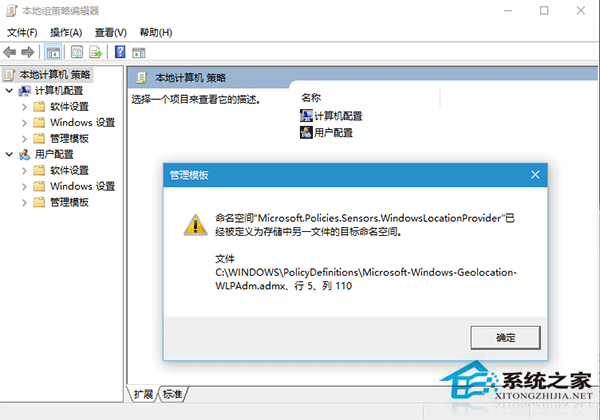
群組原則命名空間錯誤

修復步驟

  1. 開啟檔案總管,進入 C:\Windows\PolicyDefinitions。
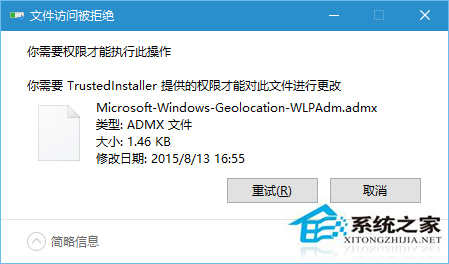
  2. 尋找 Microsoft-Windows-Geolocation-WLPAdm.admx 檔案並刪除 (或改名備份為 .bak)。
  3. 若提示權限不足無法刪除:
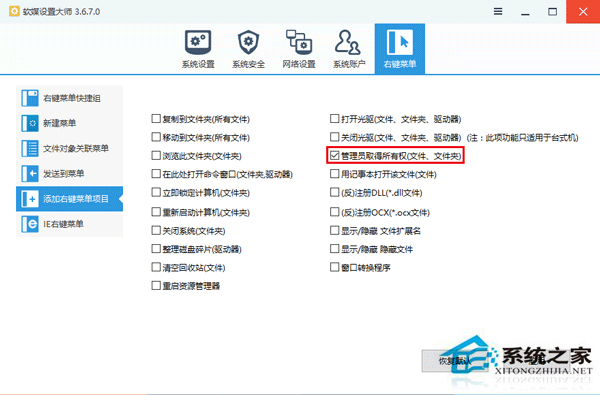
    1. 安裝「軟媒魔方」等工具,於右鍵選單新增「管理員取得所有權」功能。
    2. 右鍵該檔案選「管理員取得所有權」後再刪除。
  4. 重新開啟 gpedit.msc,錯誤訊息應消失。

PolicyDefinitions 目錄
管理員取得所有權

補充說明

  • 此問題常見於 Win10 版本升級 (如 1511→1607) 後,舊版範本檔未正確移除導致重複定義。
  • PolicyDefinitions 目錄下同名 .adml 語系檔 (如 zh-TW 子目錄) 可一併清理,避免語系衝突。
  • 家庭版無 gpedit.msc,不會遇到此問題。

刪除衝突的 Geolocation 管理範本檔,一鍵修復群組原則編輯器命名空間錯誤,恢復系統原則管理功能。

Copyright © Windows教程網 All Rights Reserved