Win10 更新至特定版本 (如 14316) 後,Chrome 及 Chromium 核心瀏覽器網頁字體出現亂碼/方塊字。主因為 DirectWrite 字體快取與系統更新不相容,提供兩種修復方案。
chrome://flags/ 按 Enter。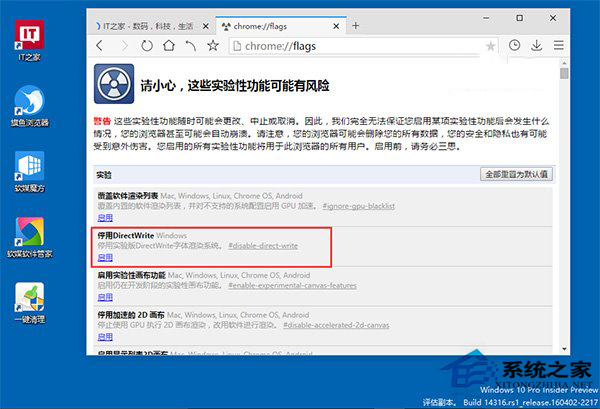
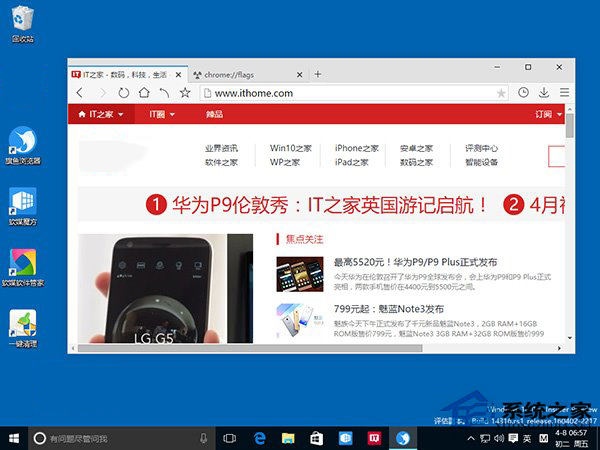
ChromeDWriteFontCache。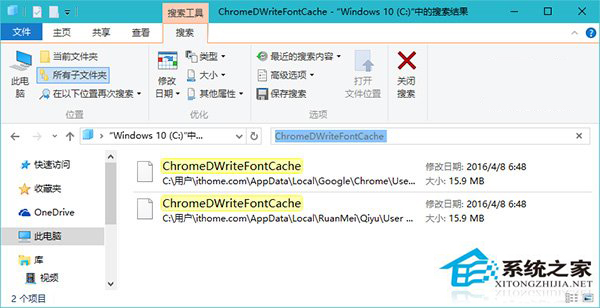
edge://flags 停用 DirectWrite 或清除 %localappdata%\Microsoft\Edge\User Data\FontCache 目錄。兩招任選一即可恢復正常顯示,建議優先嘗試方案二徹底清理快取,避免停用 DirectWrite 影響部分字體渲染品質。
Windows 10 找不到「登出」按鈕?教您在開始選單快速找到登出位置
Windows 10 開始選單無法工作修復:安全模式緊急修復 + PowerShell 重新部署 UWP 應用雙方案
免費升級 Win10 卻無人買單?近半用戶計劃一年後再升,企業更謹慎
Win10 點擊「更新與安全性」閃退修復:切換 Microsoft 帳戶或 WinRE 重設系統
Windows 10 檔案總管顯示隱藏檔案一鍵設定教學 (檢視索引標籤)
Win10 禁止「安全性與維護」推送 Windows Update 通知:關閉訊息設定