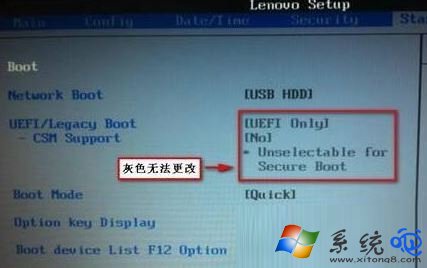
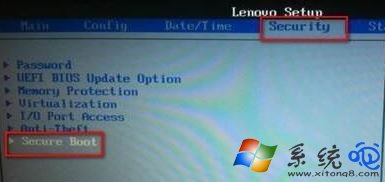
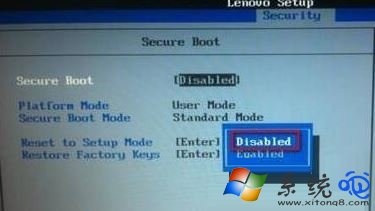
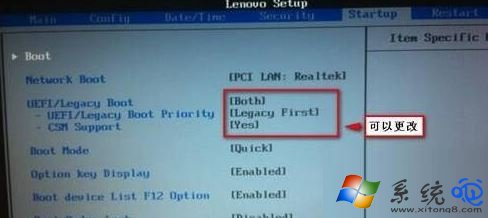
UEFI(Unified Extensible Firmware Interface)是取代傳統 BIOS 的現代韌體介面,支援大於 2 TB 硬碟、快速開機、安全開機等特性。許多使用者在安裝或重裝 Win10 時,發現 BIOS/UEFI 設定介面中 UEFI Boot / Boot Mode 選項呈灰色無法切換,主因通常是 Secure Boot(安全開機)已啟用,鎖定了啟動模式。本文說明如何關閉 Secure Boot 以解鎖 UEFI/Legacy 切換選項。
| 啟動模式 | 分區表類型 | 適用情境 |
|---|---|---|
| UEFI | GPT (GUID Partition Table) | 新電腦、>2TB 硬碟、Win10/11 全新安裝、支援 Secure Boot、快速開機 |
| Legacy/CSM | MBR (Master Boot Record) | 舊硬體、Windows 7、雙系統共存舊版 Linux、特定維護工具 |
| 問題 | 解決 |
|---|---|
| 找不到 Secure Boot 選項 | 部分 OEM 筆電隱藏進階選單,嘗試:Fn+F2、Ctrl+Alt+F2、或 BIOS 主畫面按 Ctrl+Shift+F12 解鎖進階選單 |
| 關閉 Secure Boot 後 Win10 無法開機 | Win10 UEFI 安裝不依賴 Secure Boot,僅需確認 Boot Mode 為 UEFI、硬碟為 GPT、EFI 系統分區 (ESP) 完整。若掛掉,用安裝媒體修復啟動:bcdboot C:\Windows /s S: /f UEFI (S: 為 ESP) |
| BitLocker 要求 Secure Boot | BitLocker 可在無 Secure Boot 環境運作,但 TPM 2.0 + Secure Boot 可提供更強防護。關閉 Secure Boot 前先暫停 BitLocker:manage-bde -protectors -disable C: |
| UEFI 選項仍灰色 | 確認已設定 Supervisor Password(管理員密碼),部分廠商要求設定密碼才能修改 Secure Boot/CSM |
# PowerShell 以管理員執行
Get-ComputerInfo | Select-Object WindowsProductName, WindowsVersion, BiosBootMode
# BiosBootMode 輸出 UEFI 或 Legacy
# 命令提示字元
bcdedit /enum {current} | findstr "path"
# 輸出 \Windows\system32\winload.efi 為 UEFI;winload.exe 為 Legacy
掌握關閉 Secure Boot 解鎖 Boot Mode 的技巧,無論是全新安裝 Win10、雙系統部署、還是使用舊版維護工具,都能靈活切換 UEFI/Legacy 模式,掌控電腦啟動流程。